HBCS CRM – From Lead to Sales Order in ERPNext
A practical training guide for HBCS Sales & CRM staff: how to move a lead all the way to a confirmed Sales Order in ERPNext.
1️⃣ Overview – CRM flow at HBCS
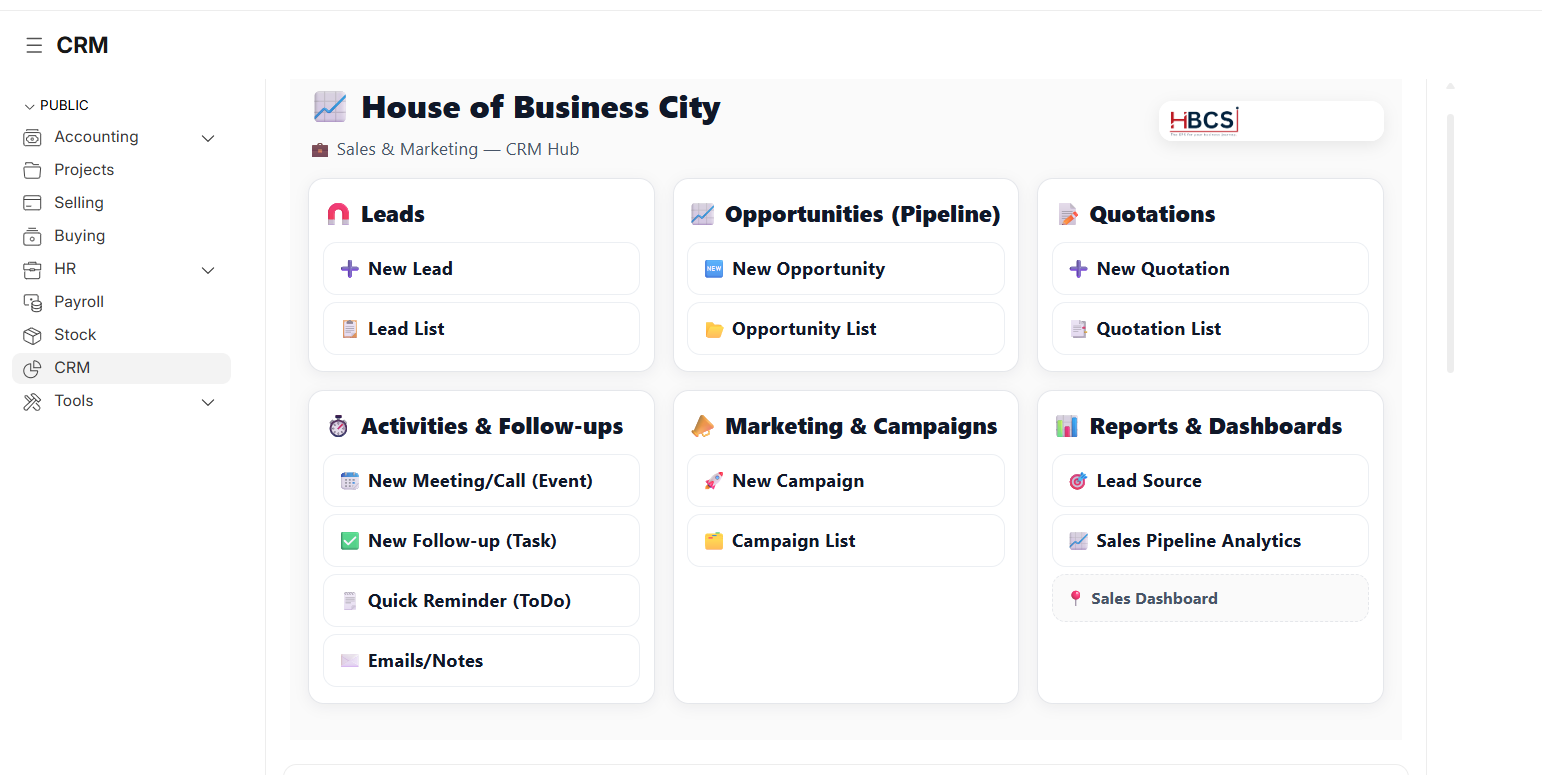
In HBCS, the CRM process in ERPNext follows a clear path: a person who is interested in HBCS services starts as a Lead, then moves through several stages until there is a confirmed Sales Order.
- A new inquiry is recorded as a Lead.
- After follow-up, a serious Lead becomes an Opportunity.
- A formal Quotation can be created if the client asks for an official offer.
- Once the client agrees, the Lead becomes a Customer.
- Finally, a Sales Order is created with the agreed services and terms.
2️⃣ Stage 1 – Recording interested people as Leads
Every person or company that shows interest in HBCS services should be recorded as a Lead. This ensures no opportunity is lost and all communication is tracked in one place.
🎯 Your goal:
Make sure every new inquiry is quickly and accurately entered as a Lead.
- Go to CRM → Lead.
- Click New.
- Fill in key information:
- Lead Name (e.g. “ABC Trading LLC – Ahmed”).
- Lead Type: Organization or Individual.
- Email and Mobile No if available.
- Lead Source: Website, WhatsApp, Phone Call, Referral, Event, etc.
- Territory: UAE / Dubai / Abu Dhabi …
- Describe interested services (Business Setup, Accounting, VAT, AML, PRO & Visa, …)
- Click Save.
⚙️ What happens automatically?
- Lead is created and appears in lists and reports.
- All future communication, tasks, and opportunities link to this Lead.
- Duplicate checks help prevent duplicate Leads.
3️⃣ Stage 2 – Following up and documenting interactions
Document calls, emails, questions, and clarifications inside the Lead record.
🎯 Your goal:
Keep a full history of communication and next steps for each Lead.
- Open the Lead from CRM → Lead.
- Use Timeline to add Comments and Emails.
- Create ToDo/Task reminders (e.g., “Call back in 2 days”).
- Update Status: Open → Contacted → Qualified → Lost.
⚙️ What happens automatically?
- Complete interaction history in one place.
- Reminders prevent missed follow-ups.
- Statuses improve funnel reporting.
4️⃣ Stage 3 – Turning a serious Lead into an Opportunity
Move serious Leads to Opportunity with services, value, and closing date.
🎯 Your goal:
Register a clear opportunity with expected services, value, and closing date.
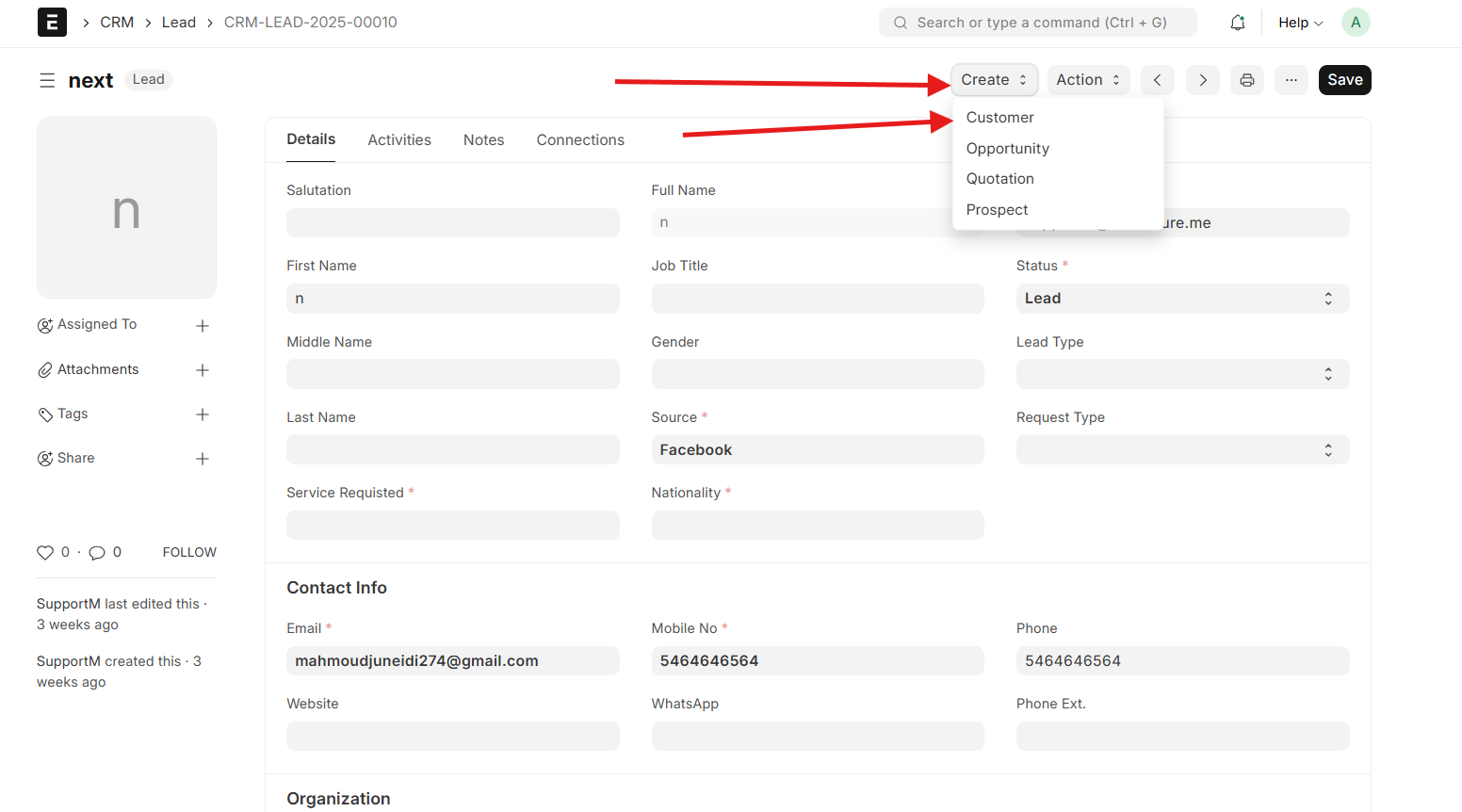
- From the Lead, click Create → Opportunity.
- Set type, expected closing, owner, and add items (services) with quantities/rates.
- Optionally set Probability % (30/60/90%).
- Save.
⚙️ What happens automatically?
- Opportunity links to the Lead.
- Appears in pipeline/forecast reports.
5️⃣ Stage 4 – Quotation (optional but important)
Create a Quotation from Opportunity when a formal proposal is requested.
🎯 Your goal:
Provide a clear, professional offer that reflects the discussed package and pricing.
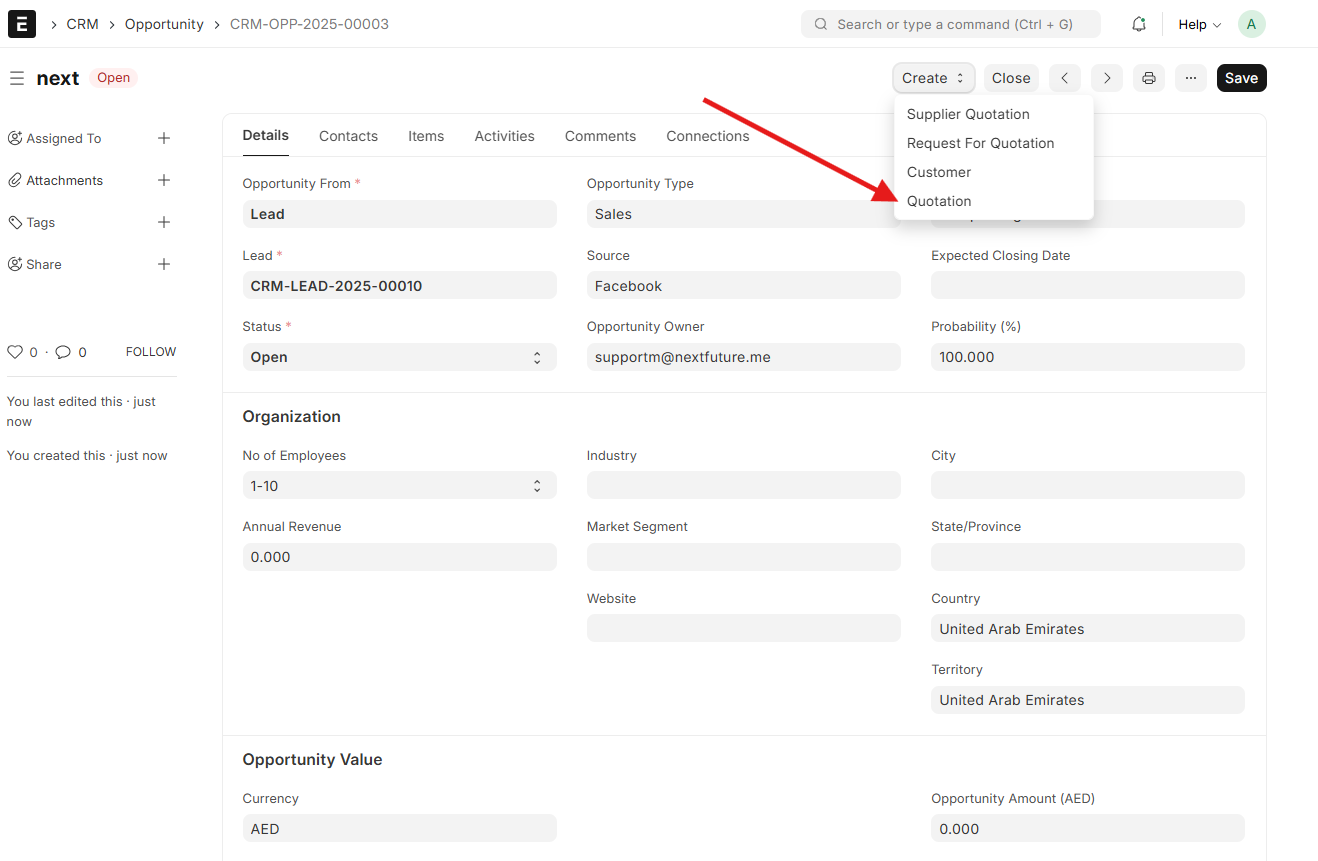
- Open the Opportunity → Create → Quotation.
- Review services, prices, currency, and payment terms.
- Email the quotation PDF to the client; Save/Submit.
⚙️ What happens automatically?
- Quotation tracked with status (Draft/Submitted/Won/Lost).
- Reports show win/loss performance.
6️⃣ Stage 5 – Converting to a Customer
Convert the Lead to a Customer when they proceed.
🎯 Your goal:
Turn the Lead into a full Customer with Contact and Address.
- Open the Lead → Convert (to Customer/Contact/Address).
- Confirm conversion.
Alternative
- From Opportunity/Quotation, ERPNext guides you to create Customer if still a Lead.
⚙️ What happens automatically?
- Customer is created; history remains linked.
- Used for Sales Orders, invoices, and payments.
7️⃣ Stage 6 – Creating and approving the Sales Order
The Sales Order is the final CRM step and contract baseline.
🎯 Your goal:
Create an accurate Sales Order with services, prices and terms.
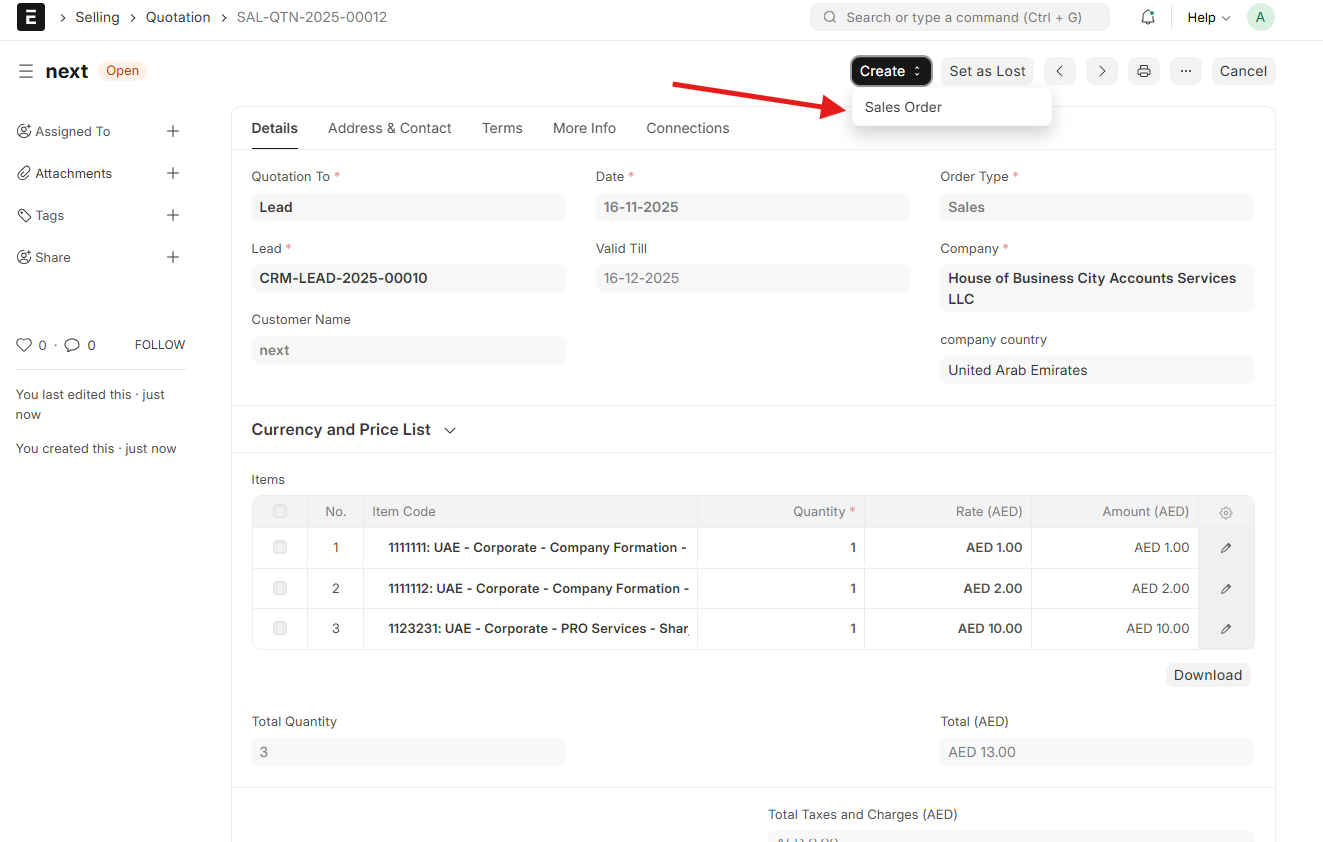
- Open the accepted Quotation → Create → Sales Order.
- Verify Customer, Items, descriptions, quantities, rates, dates, and payment terms.
- Save.
Approval and submission
- Pending Approval → Manager review → Approved → Submit.
⚙️ After submitting the Sales Order
- Reference for future Sales Invoices and service delivery tasks.
- Appears in Sales Order reports as confirmed business.
- CRM cycle complete: Lead → Opportunity → Quotation → Customer → Sales Order.
8️⃣ Summary – CRM training checklist for HBCS staff
- Record the Lead – Enter every new inquiry as a Lead.
- Follow up and document – Comments, emails, tasks.
- Create an Opportunity – Add services, value, closing date.
- Issue a Quotation – Professional offer when requested.
- Convert to Customer – Create Customer/Contact/Address.
- Create & approve Sales Order – Verify services, prices, terms; submit.
- Handover – Accounting & Operations continue delivery.
Follow these steps to maintain a clean pipeline, accurate sales data, and smooth handover.