HBCS Accounting – ERPNext Training Guide
Practical training for HBCS accounting staff: what you do on screen, and what ERPNext does automatically in the background.
1️⃣ Big Picture – How HBCS works in ERPNext
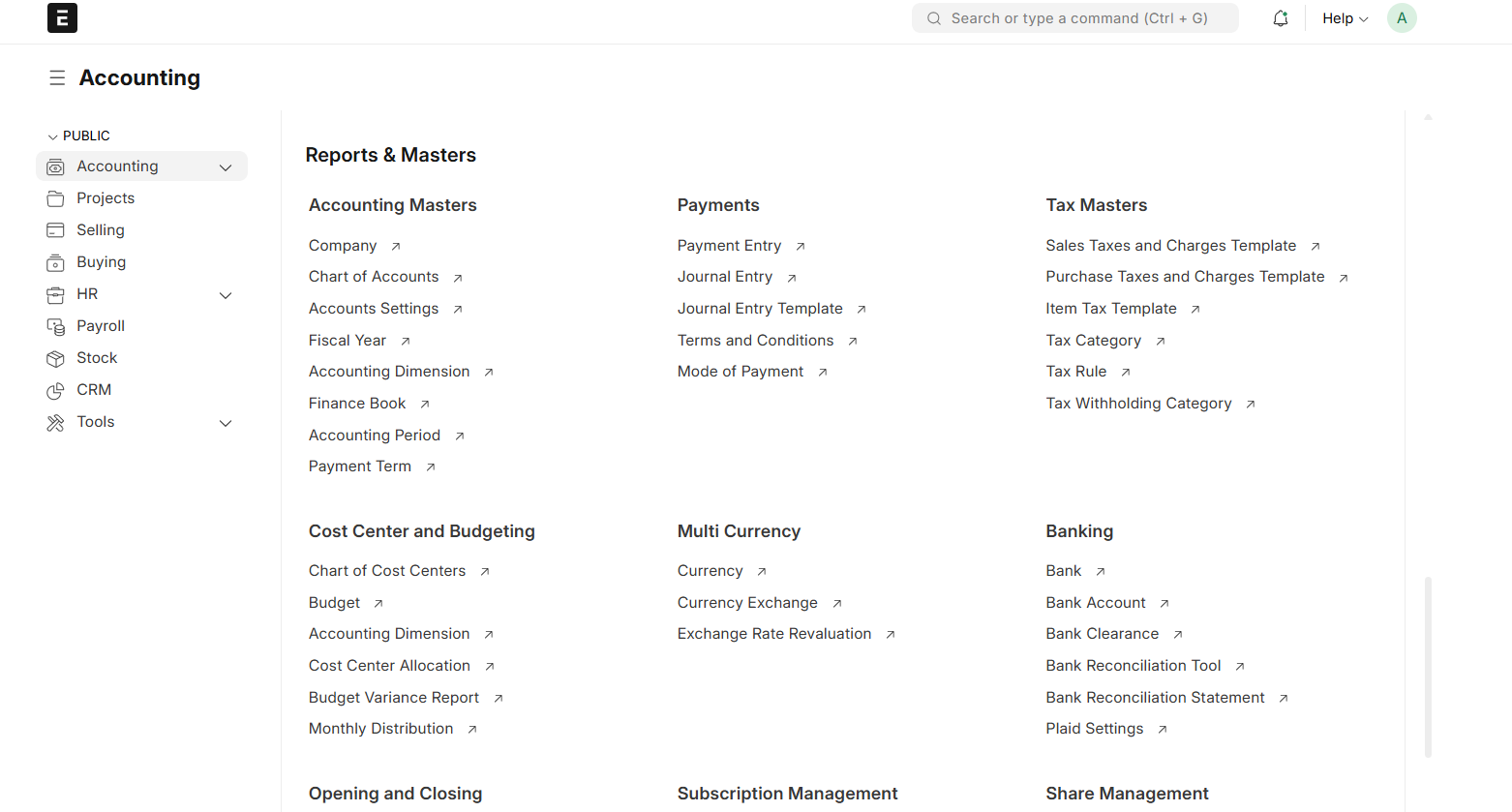
HBCS is a service company. You don’t handle physical stock like a factory. You handle services such as Business Setup, Bookkeeping & Accounting, VAT & Corporate Tax, AML Compliance, PRO & Visa Services, and more.
Clients usually buy a service package, for example:
- New Company Setup – Dubai Mainland
- Bank Account Opening
- VAT Registration
- 12 Months Bookkeeping
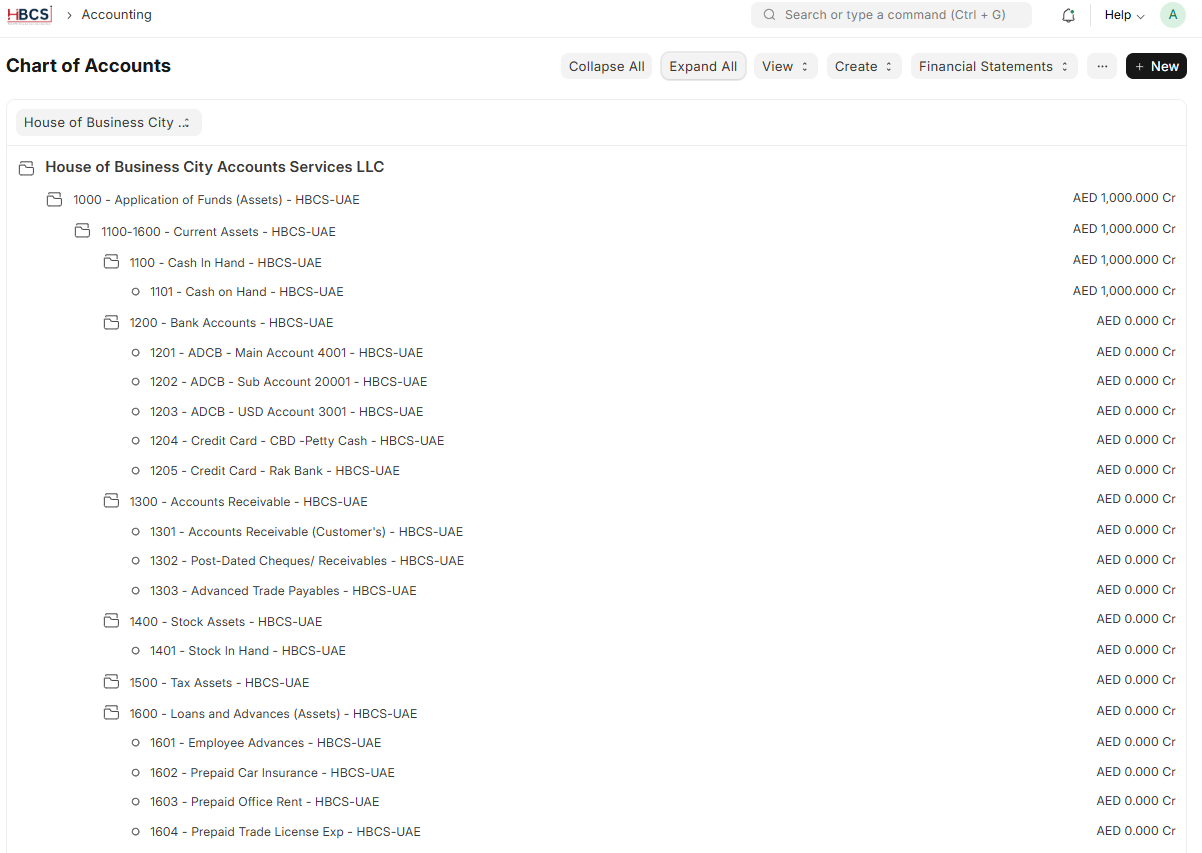
- Sales creates a Sales Order for the client’s services.
- When the Sales Order is submitted, the system creates Tasks for each service and assigns them to the relevant teams.
- The Accounting team:
- Uses the Sales Order to create Sales Invoices.
- Records Payments when money is received.
- Uses reports to track receivables, VAT, and revenue per service line.
This guide focuses on your role as Accounting staff: what you click in the system, and what ERPNext does automatically.
2️⃣ Before You Start – What is already prepared for you
Many things are already set up in ERPNext by admins or senior staff. You don’t need to build them, but you should understand they exist and you are using them.
- Customers are created and maintained.
- Service Items are defined, for example:
- Dubai Mainland – New Company Setup
- VAT Registration – UAE
- Monthly Bookkeeping – Package 12 Months
- Each service item is linked to:
- an Income Account (for revenue mapping),
- and a Cost Center (per service line or region).
3️⃣ Step 1 – Working with Sales Orders (Selling → Sales Order)
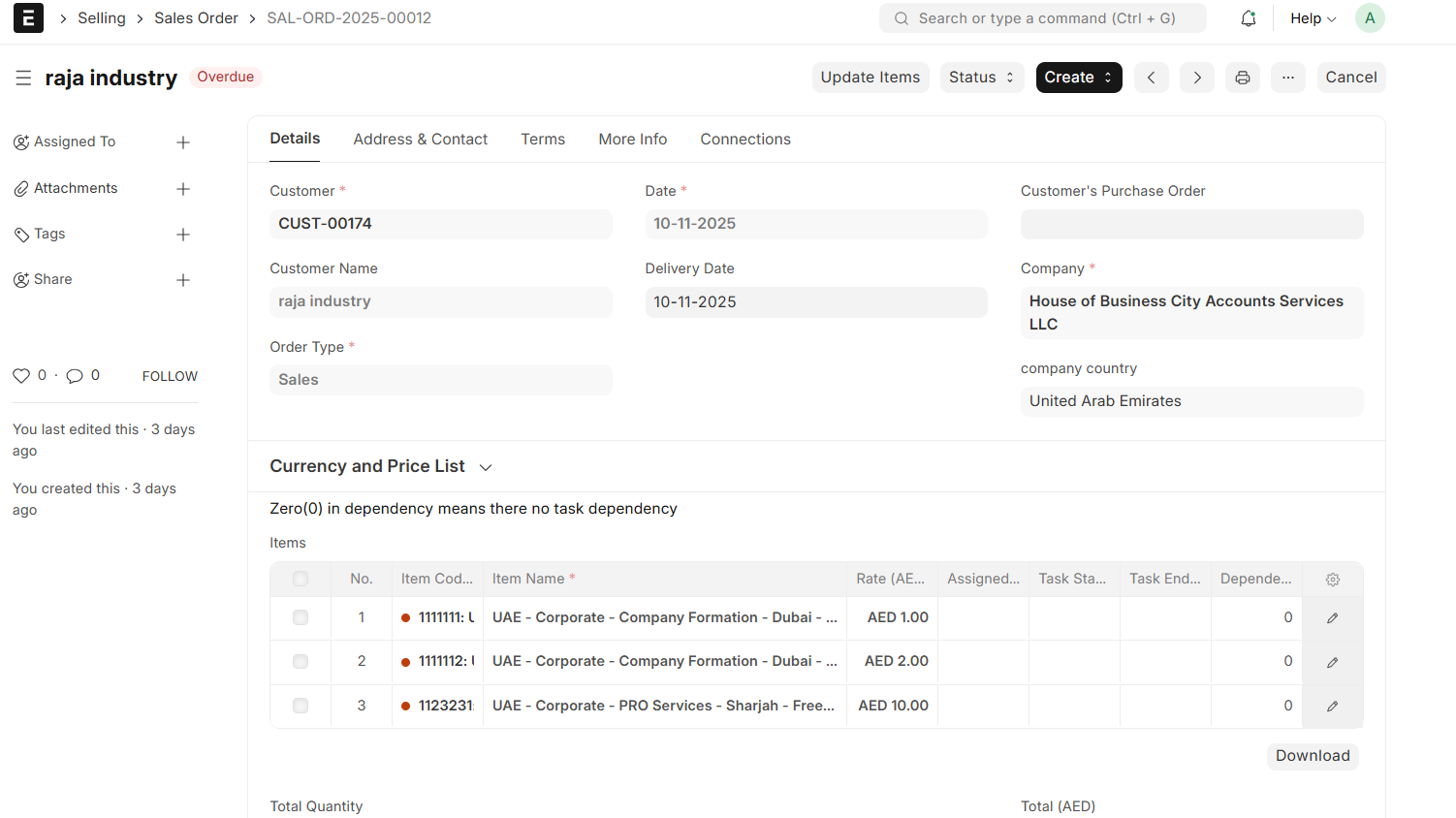
Sales Orders are the starting point for billing. They show what was agreed with the client.
🎯 Your goal as Accounting:
Review Sales Orders and use them as the base for creating invoices.
- Go to Selling → Sales Order.
- Open Sales Orders with status like To Deliver & Bill.
- Check:
- Customer name.
- Items / Services listed (are the services correct?).
- Rates and currency.
- Payment Terms (e.g. 50% upfront, 50% after setup).
- If a Project is linked (for large clients or packages).
- If something is wrong (service, rate, missing item), contact Sales to correct the Sales Order before invoicing.
⚙️ What happens automatically when a Sales Order is submitted?
- The Sales Order status changes from Draft to Submitted.
- The order becomes part of the company’s confirmed pipeline.
- ERPNext creates Tasks for each service line in the order:
- e.g. “New Company Setup – [Customer]”, “VAT Registration – [Customer]”, “Monthly Bookkeeping – [Customer]”, “AML Internal Review – [Customer]”.
- Each Task is:
- linked to the Customer,
- linked to the Sales Order,
- and assigned to the relevant team (Setup / VAT / Accounting / AML…).
- If the Sales Order is linked to a Project, all Tasks are attached to that project.
4️⃣ Step 2 – Understanding Tasks (Projects → Task)
Tasks represent the actual work that teams do for the client. Even if you don’t execute the tasks, they help you decide what to invoice and when.
What you can do with Tasks as an Accountant:
- Go to Projects → Task.
- Filter by:
- Customer to see all tasks for one client.
- Sales Order to see tasks related to a specific order.
- Project for large engagements.
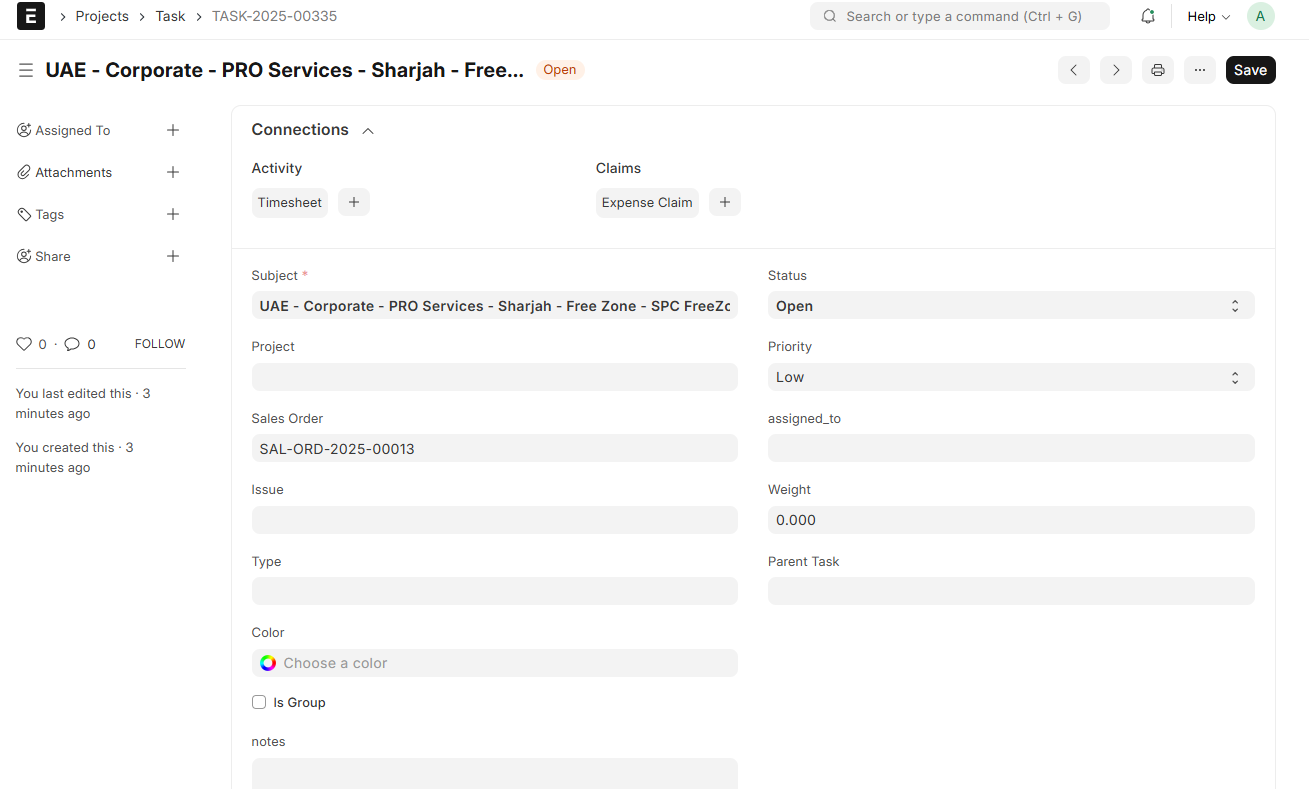
- View for each Task:
- Status: Open / Working / Completed.
- Assignee: which team member or team is responsible.
- Comments or notes from the team.
Why this matters for Accounting:
- When preparing invoices, you can see which services have started and which are completed.
- Some billing policies depend on task status:
- Example: invoice 50% on order confirmation, 50% when related tasks are completed.
⚙️ What is stored in the background with Tasks?
- Each Task carries information about the Customer, Sales Order, and possibly Project.
- Team members can log Timesheets (hours worked) against each Task.
- These feed into profitability reports later (time & cost per client or service).
5️⃣ Step 3 – Creating Sales Invoices (Accounts → Sales Invoice)
Sales Invoices turn the agreed services into official revenue and customer receivables in ERPNext.
🎯 Your goal:
Convert Sales Orders into accurate Sales Invoices.
- Open the relevant Sales Order.
- Click Create → Sales Invoice.
- ERPNext copies:
- Customer details.
- Service items and quantities.
- Rates from the Sales Order.
- Review the Sales Invoice:
- Check Posting Date (accounting date).
- Check Due Date (payment due date).
- Adjust quantities if this is a partial invoice (e.g. 50% of setup fee).
- Verify the Tax Template (e.g. 5% UAE VAT or 0%).
- Click Save to review totals.
- If everything is correct, click Submit.

⚙️ What happens automatically when you submit a Sales Invoice?
- ERPNext creates a General Ledger (GL) entry:
- Debit: Accounts Receivable (customer balance increases).
- Credit: Income accounts for each service item.
- Credit: VAT Output Tax account (if VAT applies).
- The invoice appears in:
- Customer Ledger.
- Accounts Receivable and Aging reports.
- The linked Sales Order shows:
- Billed Amount updated.
- Status moving towards Completed as it becomes fully billed and delivered.
6️⃣ Step 4 – Recording Payments (Accounts → Payment Entry)
When a client pays, you must record the payment so that receivables and bank balances stay accurate.
- From the Sales Invoice, click Create → Payment Entry (or go to Accounts → Payment Entry → New and choose the customer).
- Set:
- Payment Type = Receive.
- Party Type = Customer.
- Party = Customer name.
- Paid To = Bank or Cash account where money is received.
- In the References table:
- Ensure the correct Sales Invoice is selected.
- Enter the amount (full or partial payment).
- Click Save, then Submit.
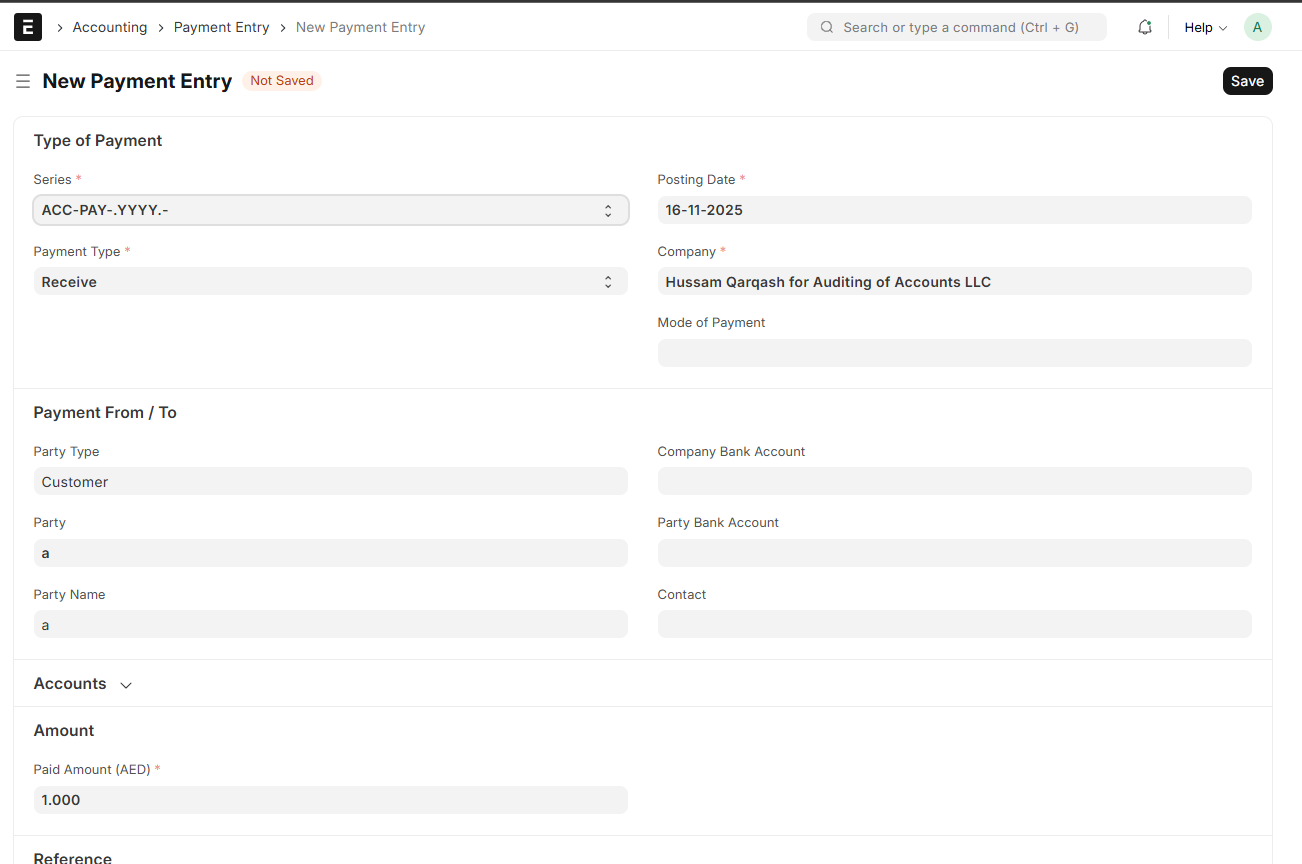
⚙️ What happens automatically when you submit a Payment Entry?
- ERPNext creates a GL entry:
- Debit: Bank / Cash (balance increases).
- Credit: Accounts Receivable (customer balance decreases).
- The Sales Invoice status updates:
- Paid if fully settled.
- Partly Paid if only partially settled.
- Reports update:
- Customer Ledger shows invoice and payment.
- Bank Ledger shows the incoming payment.
- Aging Report no longer shows fully paid invoices as outstanding.
7️⃣ Step 5 – Handling Advance Payments (before invoicing)
Sometimes HBCS receives money from the client before any invoice is created. This is an advance payment.
- Go to Accounts → Payment Entry → New.
- Set:
- Payment Type = Receive.
- Party Type = Customer.
- Party = customer name.
- Paid To = Bank or Cash account.
- Do not link it to an invoice yet. It will be treated as an advance.
- Submit the Payment Entry.
Using the advance when you create an invoice:
- Create the Sales Invoice as usual.
- In the invoice, click Get Advances Received.
- Select the advance payment to apply to this invoice.
- The system reduces the invoice’s outstanding amount accordingly.
⚙️ What happens automatically?
- When you record the advance, ERPNext tracks it as an advance in the customer’s account.
- When you apply it to an invoice, the outstanding amount of that invoice is reduced.
- Receivables and aging reports show only the remaining balance, not the original total.
8️⃣ Step 6 – Recording client or project-related expenses
HBCS may pay costs on behalf of the client, such as government fees, free zone fees, bank charges, or translation costs. You can link these expenses to projects or cost centers for better profitability analysis.
- Purchase Invoice – when the expense comes from a supplier.
- Journal Entry – for internal account movements or adjustments.
- Expense Claim – when an employee paid from personal funds and needs reimbursement.
In each case, you can:
- Link the expense line to a Project (for that client package), and/or
- Assign it to a specific Cost Center (for that service line).
⚙️ What happens in the background?
- The expense posts to an appropriate Expense Account.
- It is associated with the right Project and/or Cost Center.
- Later, Project Profitability and Cost Center Profitability reports can show:
- Revenue from invoices,
- minus expenses and time,
- = actual profit per client or service line.
9️⃣ Step 7 – Key reports for the HBCS accounting team
Once you follow the process correctly, ERPNext generates most reports automatically from your invoices, payments, and expenses.
9.1 Receivables reports
- Accounts Receivable – shows outstanding balances per customer.
- Accounts Receivable Aging – shows unpaid amounts by age (current, 30/60/90+ days).
- Customer Ledger – detailed view of all invoices, payments, and adjustments.
9.2 Financial statements
- Trial Balance
- Profit & Loss Statement
- Balance Sheet
These are built automatically from:
- Sales Invoices (revenue),
- Payment Entries (collections),
- Purchase Invoices, Expense Claims, and Journal Entries (expenses and other movements).
9.3 Profitability by service or project
- If you use service items, income accounts, cost centers, and projects correctly, you can see:
- Profitability for Business Setup services.
- Profitability for VAT & Tax Services.
- Profitability for each Project / Client package.
9.4 VAT reports
- ERPNext can generate VAT reports (e.g. UAE VAT) based on:
- Tax templates applied on invoices.
- Configured VAT accounts.
- Your responsibility is to:
- Select the correct Tax Template on Sales and Purchase Invoices.
- Avoid bypassing VAT logic with random manual journal entries.
🔟 Quick Summary – Cheat Sheet for Accounting Staff
- Sales Order created – Services/packages agreed with the client are recorded and Tasks are generated per service line.
- You review the Sales Order – Make sure it is correct and ready for billing.
- You create a Sales Invoice – ERPNext posts revenue, VAT, and Accounts Receivable automatically.
- You record Payments (Payment Entries) – ERPNext updates bank/cash balances and reduces receivables.
- You record client-related expenses – ERPNext links them to the right project/cost center for profitability analysis.
- You run reports – You see receivables, revenue, VAT, and profit without writing many manual journal entries.
📌 Mindmap – HBCS Accounting Workflow in ERPNext
HBCS Accounting Workflow – From Sales Order to Reports
High-level view of how Sales Orders, Tasks, Invoices, Payments, and Reports connect together in ERPNext.
1️⃣ Sales Order – Starting point
- Sales records the client’s package as a Sales Order.
- Includes all services: Business Setup, VAT, Bookkeeping, AML, PRO, etc.
- Once submitted, it becomes the base for both:
- Operational work (Tasks), and
- Future billing (Sales Invoices).
2️⃣ Tasks – Work execution
- ERPNext creates Tasks per service line (Setup, VAT, Bookkeeping, AML…).
- Tasks are linked to the Customer, Sales Order, and sometimes a Project.
- Teams update Task status (Open, Working, Completed) and can log timesheets.
- Accounting uses Task status to understand which services are ready to be invoiced.
3️⃣ Sales Invoice – Turning services into revenue
- You create Sales Invoices from the Sales Order.
- You can invoice:
- Upfront amounts (e.g. 50% on confirmation),
- Remaining amounts on completion,
- Or monthly fees (e.g. bookkeeping).
- When you submit the invoice, ERPNext automatically:
- Debits Accounts Receivable,
- Credits Income accounts and VAT where applicable.
4️⃣ Payment Entry – Recording client payments
- You record payments using Payment Entry (Receive).
- Link payments to specific invoices or keep them as advances.
- On submission, ERPNext:
- Debits Bank/Cash,
- Credits Accounts Receivable.
- Invoices move to Paid or Partly Paid status.
5️⃣ Advances – Money received before invoicing
- Sometimes clients pay before any invoice exists.
- You record this as a Payment Entry not linked to an invoice (advance).
- Later, when you create a Sales Invoice, you use Get Advances Received to apply that amount.
- ERPNext reduces the invoice outstanding and keeps receivables accurate.
6️⃣ Client & project expenses – Costs side
- You record expenses via Purchase Invoices, Journal Entries, or Expense Claims.
- Link expenses to the appropriate Project or Cost Center.
- ERPNext tracks these as costs connected to the same client or service line.
- Later, profitability reports show:
- Revenue from invoices,
- minus expenses and time,
- = actual profit.
7️⃣ Reports – Full financial view
- Receivables – ageing and customer balances.
- Financial statements – Trial Balance, P&L, Balance Sheet.
- Profitability – per service line and per project.
- VAT reports – based on invoices, taxes, and configured VAT accounts.
- All of this is powered by the daily work you do: Sales Orders → Invoices → Payments → Expenses.