مقدّمة تدريب موديول المحاسبة في ERPNext
هذه الصفحة هي دليل تمهيدي مخصّص للمتدربين لدى NEXTFUTURE، لشرح دورة العمل المحاسبية الكاملة في نظام ERPNext؛ من لحظة تسجيل طلب شراء أو طلب مبيعات، مرورًا بالفواتير، وانتهاءً بالقيود اليومية، القبض والدفع، والتقارير والمطابقات البنكية.
التركيز في هذا التدريب على التطبيق العملي خطوة بخطوة، باستخدام بيئة ERPNext الحقيقية، بحيث يفهم المتدرب الصورة الكاملة للحركات المحاسبية، وليس فقط شاشة إدخال البيانات.
1. ما الذي ستتعلّمه في هذا الموديول؟
موديول المحاسبة في ERPNext هو العمود الفقري للنظام المالي في شركتك. خلال هذه الدورة سيقوم فريق NEXTFUTURE بأخذك في رحلة عملية تغطي جميع الحركات الأساسية التي يمرّ بها أي نظام محاسبي سليم، مع تحويلها إلى خطوات واضحة داخل النظام.
- فهم مخطط الحسابات وكيفية قراءة وتصميم هيكل الحسابات بما يناسب شركتك.
- تطبيق دورة الشراء الكاملة: من طلب الشراء حتى فاتورة الشراء وسند الدفع ومطابقة المورد.
- تطبيق دورة البيع الكاملة: من عرض السعر وطلب المبيعات حتى فاتورة المبيعات وسند القبض ومطابقة الزبون.
- تسجيل القيود اليومية اليدوية والتسويات المحاسبية (مخصصات، اهتلاكات، فروق عملات… إلخ).
- إدارة حركات القبض والدفع النقدية والمصرفية باستخدام مستند Payment Entry.
- استخدام التقارير الأساسية: دفتر الأستاذ العام، أعمار الديون، أرصدة الحسابات، والتقارير البنكية.
- مراجعة ومطابقة الحسابات بشكل دوري، وفهم أثر كل مستند على القوائم المالية.
هذا المحتوى مكتوب بصيغة تعليمية عملية، بحيث يمكن استخدامه كمرجع دائم بعد انتهاء التدريب، أو كأساس لمادة تعليمية داخلية في الشركة.
2. دورة المستندات المالية في ERPNext – من الطلب إلى القيد
قبل الدخول في تفاصيل الشاشات، نحتاج إلى رؤية الصورة الكبيرة: كيف تتحرك البيانات المالية في النظام من أول خطوة حتى آخر تقرير. يمكن تخيل موديول المحاسبة كمجرى يمر بالمراحل التالية:
- مرحلة الطلبات (طلبات شراء – طلبات مبيعات).
- مرحلة حركات المخزون (استلام – تسليم).
- مرحلة الفواتير (فواتير شراء – فواتير مبيعات).
- مرحلة القبض والدفع (Payment Entry).
- مرحلة التقارير والمطابقة (دفتر الأستاذ، كشف حساب، مطابقة بنكية…إلخ).
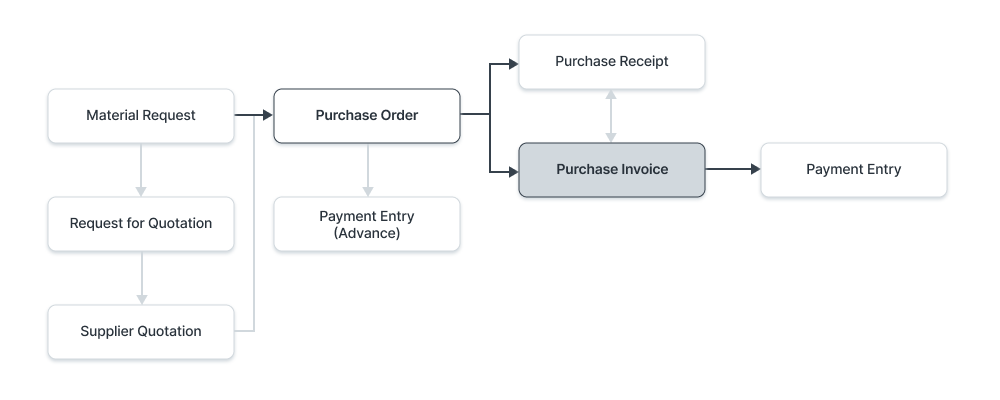
سيتم تطبيق منطق مشابه في جانب المبيعات: عرض سعر / طلب مبيعات → تسليم → فاتورة مبيعات → سند قبض. في كل مرحلة يقوم النظام بإنشاء قيود محاسبية تلقائية، وتتحرك الأرصدة بشكل مترابط عبر الحسابات والمخزون.
3. تجهيز بيئة المحاسبة قبل إدخال الحركات
من أكبر الأخطاء في تطبيق أي نظام ERP أن نبدأ بإدخال فواتير وسندات قبل التأكد من أن الأساس المحاسبي مضبوط. في هذا الجزء نضع إطارًا لما سنقوم بإعداده معكم قبل بدء الحركات اليومية.
3.1 مخطط الحسابات (Chart of Accounts)
مخطط الحسابات هو شجرة الحسابات الرئيسية والفرعية التي تُبنى عليها جميع القيود. في ERPNext يأتي النظام مع مخططات جاهزة يمكن تخصيصها (حسب الدولة أو نوع النشاط)، لكن دور NEXTFUTURE هنا هو:
- مراجعة الهيكل الحالي للحسابات لدى الشركة.
- اقتراح إعادة هيكلة مبسّطة (إن لزم) تُراعي التقارير المطلوبة والفصل بين الأنشطة.
- ربط أنواع المستندات بالحسابات المناسبة (حساب المبيعات، المخزون، تكلفة المبيعات، المصروفات…إلخ).
كلما كان مخطط الحسابات أوضح وأقل تعقيدًا، كان تحليل التقارير المالية أسهل بكثير. الهدف أن يأخذ المحاسب القرار بسهولة، لا أن يتوه داخل شجرة حسابات معقدة.
3.2 بيانات الأطراف (العملاء والموردون والموظفون)
قبل استخدام فواتير الشراء والبيع، سنقوم بإعداد كروت الأطراف الأساسية:
- إنشاء Customers مع ربط كل عميل بالحساب المناسب (حساب زبائن محليين، زبائن خارجيين…).
- إنشاء Suppliers مع ربط كل مورد بحساب الموردين المناسب.
- تعريف الحسابات البنكية وصناديق النقدية كحسابات داخل مخطط الحسابات وربطها بمستند Payment Entry.
- تعريف بعض الموظفين إن كان هناك تعاملات سلف وذمم موظفين.
3.3 الإعدادات العامة للمحاسبة
في جلسة الإعداد الأولي سنراجع أهم الإعدادات في Accounts Settings و Company مثل:
- العملة الأساسية للشركة (مثلاً: دينار أردني) والعملة الافتراضية للفواتير.
- إعدادات السنة المالية، وعدد الفترات (سنوي، ربع سنوي…إلخ).
- ربط الحسابات الافتراضية للضرائب، الخصومات، الفوائد، فروق العملة…إلخ.
- تفعيل إعدادات Multi Currency إن كانت الشركة تتعامل بأكثر من عملة.
بعد الانتهاء من هذه الخطوات يكون النظام جاهزًا لاستقبال الحركات اليومية دون الحاجة إلى تعديل جذري في منتصف السنة المالية.
4. دورة الشراء العملية: من طلب الشراء إلى سند الدفع
في هذه الوحدة يتعلم المتدرب كيف تتحول احتياجات المخزون أو الخدمات إلى مستندات مالية متكاملة، وكيف يقوم النظام بإنشاء القيود تلقائيًا مع كل خطوة.
4.1 خطوات دورة الشراء
- إصدار طلب مواد (Material Request) أو طلب شراء (Purchase Order) حسب سياسة الشركة.
- استلام البضاعة فعليًا وتسجيلها في مستند Purchase Receipt (اختياري حسب السياسة).
- استقبال فاتورة المورد وتسجيلها في Purchase Invoice.
- سداد الفاتورة عبر مستند Payment Entry نقدًا أو شيكًا أو تحويلًا بنكيًا.
4.2 فاتورة الشراء (Purchase Invoice)
تعتبر فاتورة الشراء المستند الأساسي الذي يربط بين المورد، المخزون، والمصروفات. عند حفظها واعتمادها يقوم النظام بتحديث أرصدة حسابات المورد والمخزون والتكاليف تلقائيًا.
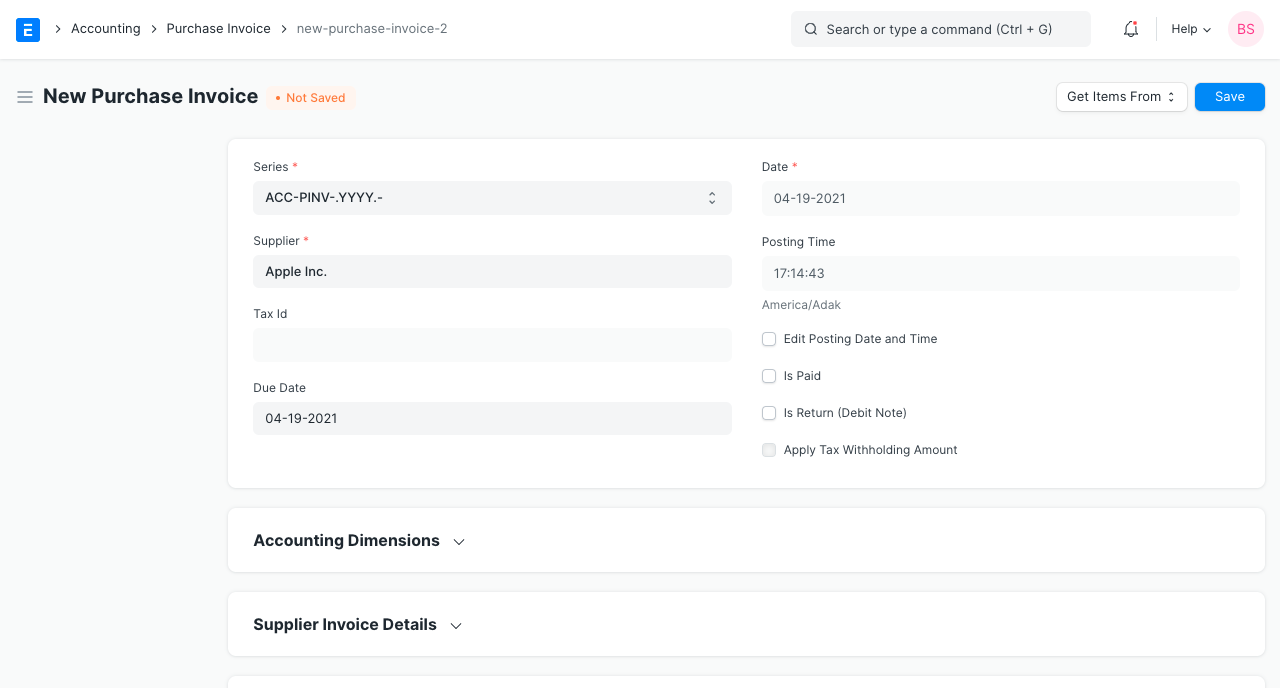
4.2.1 إعداد فاتورة شراء جديدة – خطوات عملية
- من شجرة الوحدات اختر: Accounting > Accounts Payable > Purchase Invoice.
- اضغط على New لإنشاء فاتورة جديدة.
- اختر المورد وتأكد من جلب عنوانه وبيانات الضريبة تلقائيًا.
- اضبط تاريخ الفاتورة وتاريخ الاستحقاق إن وجد.
-
في جدول Items أضف المواد أو الخدمات:
- اختيار الصنف من قائمة الأصناف.
- تحديد الكمية وسعر الوحدة.
- تحديد المستودع الذي ستدخل إليه البضاعة.
- إضافة الضرائب والرسوم في جدول Taxes and Charges حسب إعدادات الضريبة في الشركة.
- المراجعة النهائية والتحقق من الإجمالي.
- الضغط على Save ثم Submit لاعتماد الفاتورة وإنشاء القيد.
الهدف: إدخال أول فاتورة شراء لمورد محلي مع ضريبة مبيعات، ومراجعة أثرها على حساب المورد والمخزون.
- المورد: شركة توريد قرطاسية.
- الصنف: ورق طباعة A4 – 10 رزم.
- السعر للوحدة: 3 دنانير، الضريبة: 16%، طريقة الدفع لاحقًا.
- بعد اعتماد الفاتورة، افتح General Ledger وشاهد القيد الذي تم إنشاؤه تلقائيًا.
4.3 الربط بين الاستلام والفاتورة
في الشركات التي تعتمد سياسة استلام البضاعة قبل إصدار فاتورة الشراء، يتم أولًا عمل Purchase Receipt ثم تُنشأ فاتورة الشراء لاحقًا من هذا الاستلام.
- يساعد هذا الأسلوب على مطابقة الكميات المستلمة مع الفاتورة.
- يقلل من احتمالية الخطأ في الأسعار أو الكميات.
- يتيح تسجيل الالتزام بالمورد حتى لو لم تصل الفاتورة الورقية بعد.
4.4 سند الدفع (Payment Entry) عن فاتورة شراء
بعد اعتماد فاتورة الشراء يبقى على الشركة التزام مالي تجاه المورد. عند السداد، نستخدم مستند Payment Entry من نوع Pay ونربطه بفاتورة الشراء؛ فيقوم النظام بتحديث رصيد المورد وإغلاق الفاتورة.
سننفّذ معًا سيناريوهات دفع مختلفة (سداد نقدي، سداد من حساب بنكي، دفعة جزئية، دفعة مقدمة قبل الفاتورة)، وسنقارن أثر كل سيناريو على التقارير.
5. دورة البيع العملية: من طلب المبيعات إلى سند القبض
جانب المبيعات هو قلب الإيرادات. في ERPNext تُدار دورة البيع بطريقة مشابهة للشراء، لكن من منظور الزبون بدل المورد. في هذه الوحدة سنتعامل مع مستندات مثل Sales Order و Sales Invoice وسندات القبض.
5.1 خطوات دورة البيع
- إصدار Quotation (إن لزم) أو مباشرة Sales Order.
- تحويل الطلب إلى Delivery Note لتأكيد تسليم البضاعة.
- إنشاء Sales Invoice مرتبطة بالطلب أو التسليم.
- استلام المبلغ عبر Payment Entry من نوع Receive.
5.2 فاتورة المبيعات (Sales Invoice)
على عكس فاتورة الشراء، تمثل فاتورة المبيعات دينًا على الزبون وإيرادًا للشركة. عند اعتمادها يقوم النظام بتحديث حسابات الذمم المدينة وحسابات المبيعات والمخزون.
5.2.1 إعداد Sales Invoice – خطوات عملية
- من القائمة اختر: Accounting > Accounts Receivable > Sales Invoice.
- اضغط New، ثم اختر الزبون المراد إصدار الفاتورة له.
- تحديد تاريخ الفاتورة وتاريخ الاستحقاق.
-
في جدول Items أضف المواد أو الخدمات المطلوبة:
- اختيار الأصناف والكمية.
- تحديد سعر البيع وقائمة الأسعار (Price List) إن وجدت.
- اختيار المستودع الذي ستخرج منه البضاعة إن كانت الفاتورة تحدث حركة مخزون.
- إضافة الضرائب والخصومات حسب سياسة البيع.
- مراجعة الإجمالي الكلي، ثم Save وSubmit.
- الزبون: متجر تجزئة محلي.
- الصنف: شاشة عرض – 5 قطع، بسعر 120 دينار للقطعة.
- خصم عام 5% على الفاتورة، وضريبة 16%.
- الدفعة ستكون بعد 30 يومًا، لذا نترك الفاتورة كـ Unpaid.
- بعد الحفظ والاعتماد، افتح Customer Ledger وشاهد الرصيد الجديد للزبون.
5.3 سند القبض (Payment Entry – Receive)
عندما يدفع الزبون جزءًا أو كل المبلغ، نقوم بإنشاء سند قبض من نوع Payment Entry (Receive) وربطه بالفاتورة. يمكن أن يكون الدفع نقدًا، شيكًا، تحويلًا بنكيًا، أو من خلال بوابة دفع إلكترونية.
خلال التدريب سنوضح الفرق بين:
- سند قبض مرتبط بفاتورة معينة (تسوية مباشرة للفاتورة).
- سند قبض كتسوية Advance قبل إنشاء الفاتورة واستخدامه لاحقًا.
- سند قبض عام لحساب معين (دون ربط بفواتير)، وتأثيره على التقارير.
6. القيود اليومية والتسويات المحاسبية في ERPNext
بالرغم من أن معظم القيود يتم إنشاؤها تلقائيًا من الفواتير وسندات القبض والدفع، يبقى هناك دائمًا حاجة إلى قيود يدوية للتسويات الخاصة، مثل المخصصات والفوائد وفروق العملة والتسويات الختامية.
6.1 متى نستخدم Journal Entry؟
- تسجيل قيود افتتاحية عند بداية استخدام النظام.
- إثبات مخصصات (ديون مشكوك في تحصيلها، مكافآت…إلخ).
- تصحيح أخطاء في قيود سابقة بطريقة محاسبية صحيحة.
- إثبات مصاريف أو إيرادات مستحقة لم تُسجل بعد.
- إثبات قيود اهتلاك الأصول الثابتة (إن لم تستخدم موديول الأصول الآلي).
6.2 مكوّنات مستند Journal Entry
- Posting Date: تاريخ تأثير القيد على الدفاتر.
- Reference Number / Reference Date: مرجع خارجي (شيك، سند، مستند ورقي).
- Accounts Table: يحتوي على الصفوف المدينة والدائنة.
- User Remark: شرح موجز للقيد يُستخدم لاحقًا في التقارير.
6.3 مثال – قيد مخصص ديون مشكوك في تحصيلها
نفترض أن الشركة قررت تكوين مخصص بنسبة 5% من رصيد أحد العملاء:
- مدين: مصروف مخصص ديون مشكوك في تحصيلها.
- دائن: مخصص ديون مشكوك في تحصيلها (حساب ضمن الالتزامات أو خصم من الذمم).
- افتح Journal Entry من موديول المحاسبة.
- حدد نوع القيد كـ Journal Entry عادي.
- أدخل حساب المصروف كمدين، وحساب المخصص كدائن بقيمة المخصص.
- اكتب شرحًا واضحًا في حقل User Remark مثل: «تكوين مخصص ديون عن عميل X بنسبة 5%».
- احفظ واعتمد القيد، ثم تابع أثره في Trial Balance.
6.4 فروق العملة وإعادة التقييم
للشركات التي تتعامل بعملات متعددة، يمكن استخدام قيود خاصة لتسجيل فروق سعر الصرف عند السداد أو في نهاية الفترة. في التدريب سنناقش:
- الفرق بين Exchange Gain or Loss الناتج عن سداد فعلي، وExchange Rate Revaluation كإعادة تقييم للأرصدة في نهاية الفترة.
- كيف يظهر الفرق في قائمة الدخل.
- أفضل الممارسات لتقليل عدد القيود اليدوية من خلال استخدام إعدادات النظام.
7. إدارة النقدية: سندات القبض والدفع (Payment Entry)
مستند Payment Entry هو نقطة الربط بين الفواتير والحسابات البنكية والصناديق النقدية. من خلاله تتم عملية تسوية الفواتير وإغلاق الذمم.
7.1 أنواع Payment Entry
- Receive: سند قبض من زبون أو طرف آخر.
- Pay: سند دفع لمورد أو جهة أخرى.
- Internal Transfer: تحويل بين حسابات داخلية (مثلاً من صندوق إلى بنك).
7.2 مكوّنات سند القبض/الدفع
- حقل Party Type وParty (عميل – مورد – موظف…إلخ).
- حساب Paid From (في سند الدفع) أو Paid To (في سند القبض).
- العملة، المبلغ، وسعر الصرف إن كان الحساب بعملة غير عملة الفاتورة.
- جدول الربط بالفواتير (References)، حيث يتم تحديد الفواتير التي يجري تسويتها بهذا السند.
7.3 سيناريوهات تدريب على Payment Entry
- اختيار نوع المستند: Pay.
- Party Type = Supplier، تحديد المورد.
- Paid From = حساب البنك، Paid To = حساب المورد (أو دفعة إلى).
- من جدول References يتم جلب فواتير المورد المفتوحة، وتحديد الفاتورة بالكامل.
- اعتماد السند، ثم مراجعة حساب المورد في Supplier Ledger.
- نوع السند: Receive.
- تحديد العميل وحساب القبض (صندوق أو بنك).
- اختيار الفاتورة في جدول المراجع وتعبئة مبلغ أقل من المبلغ المستحق.
- بعد الاعتماد تبقى الفاتورة Partly Paid برصيد مفتوح.
- إنشاء سند قبض/دفع من دون ربط بفاتورة محددة.
- يتم تسجيل المبلغ كرصيد مقدم لصالح العميل أو المورد.
- عند إنشاء الفاتورة لاحقًا، يمكن استخدام هذا الرصيد لتسوية جزء من قيمتها.
7.4 التحويلات الداخلية وإدارة الصناديق
كثيرًا ما تحتاج الشركة لتحويل مبالغ بين حسابات داخلية (من بنك إلى بنك، أو من بنك إلى صندوق، أو العكس). بدلًا من إنشاء قيد يدوي، يمكن استخدام Payment Entry – Internal Transfer:
- Paid From = الحساب المحوَّل منه.
- Paid To = الحساب المحوَّل إليه.
- لا يُربط هذا السند بفواتير، لكنه يظهر في دفتر الأستاذ لكل من الحسابين.
8. التقارير الأساسية ومطابقة الحسابات
جمال موديول المحاسبة في ERPNext لا يكمن فقط في إدخال الحركات، بل في القدرة على قراءة هذه الحركات من خلال تقارير واضحة. في التدريب سنركّز على مجموعة تقارير مركزية:
8.1 دفتر الأستاذ العام (General Ledger)
تقرير General Ledger يعرض جميع القيود التي أثّرت على حساب معين أو مجموعة حسابات خلال فترة زمنية محددة، مع إمكانية التصفية حسب نوع المستند أو الطرف.

من خلال هذا التقرير يمكن للمحاسب:
- تتبع كل حركة مرّت على حساب محدد (مثلاً حساب المبيعات، حساب بنك معيّن أو حساب زبون).
- التحقق من تطابق رصيد الحساب مع ما يظهر في القوائم المالية النهائية.
- استخدام فلاتر التاريخ، نوع المرجع (Ref Type)، والحساب، والعميل/المورد لتضييق النتائج.
8.2 ترتيب القيود داخل دفتر الأستاذ
يتيح التقرير اختيار طريقة ترتيب القيود زمنيًا؛ بحيث يمكن عرض الحركات من الأحدث إلى الأقدم أو بالعكس. عند اختيار عرض Ascending Order تظهر القيود من الأقدم إلى الأحدث، مما يساعد في مراجعة تسلسل الحركات بالتتابع التاريخي.

8.3 تقارير الذمم المدينة والدائنة
- Accounts Receivable: يعرض فواتير العملاء المفتوحة، مبوّبة حسب العمر (من 0 إلى 30 يومًا، 60، 90، الخ).
- Accounts Payable: يعرض التزامات الشركة تجاه الموردين بالطريقة نفسها.
- يمكن استخدام هذه التقارير لاتخاذ قرارات تحصيل أو جدولة دفعات.
8.4 المطابقات البنكية
لإغلاق دورة الحسابات بشكل صحيح، يجب:
- استيراد كشوفات البنك (أو إدخالها يدويًا).
- مطابقة الحركات البنكية مع سندات القبض والدفع داخل النظام.
- التعامل مع الفروقات (عمولات بنكية، فوائد، حركات لم تُسجل بعد) عبر قيود تسوية.
بناء روتين شهري واضح للمطابقة البنكية بحيث يصبح جزءًا ثابتًا من عمل قسم الحسابات، وليس مهمة ثقيلة قبل نهاية السنة فقط.
9. خطة الجلسات التدريبية لموديول المحاسبة
ليتحوّل هذا المحتوى من نص إلى مهارة عملية، سيتم توزيع تطبيقه على جلسات تدريبية متتابعة. النموذج التالي يوضّح فكرة الخطة التي تعتمدها NEXTFUTURE في أغلب المشاريع:
الجلسة الأولى – الإعدادات الأساسية ومخطط الحسابات
- مراجعة مخطط الحسابات الحالي للشركة.
- إعداد الشركة، السنة المالية، العملات، الضرائب.
- إدخال نموذج لعملاء وموردين وحسابات بنكية.
- تجربة إنشاء أول Journal Entry بسيط للتأكد من سلامة القيود.
الجلسة الثانية – دورة الشراء الكاملة
- إدخال صنف جديد وربطه بالمخزون والحسابات.
- تنفيذ سيناريو Purchase Order → Purchase Receipt → Purchase Invoice → Payment Entry.
- مراجعة أثر كل خطوة على دفتر الأستاذ.
الجلسة الثالثة – دورة البيع الكاملة
- إدخال زبون جديد وسياسة الأسعار والخصومات له.
- تنفيذ سيناريو Sales Order → Delivery Note → Sales Invoice → Payment Entry.
- التعامل مع فاتورة مرتجع (Credit Note) وتأثيرها على المخزون والذمم.
الجلسة الرابعة – التسويات والقيود الخاصة والتقارير
- تسجيل مخصصات، اهتلاكات، وفروق عملة عبر Journal Entry.
- مراجعة التقارير الأساسية ومطابقة الحسابات.
- إنشاء «قائمة فحص شهرية» لمحاسبي الشركة لاستخدامها بعد التدريب.
10. كيف تدعمك NEXTFUTURE بعد انتهاء التدريب؟
لا ينتهي دور NEXTFUTURE عند آخر جلسة تدريب؛ بل نهدف أن يصبح فريقك قادرًا على تشغيل النظام بثقة. لذلك نلتزم عادةً بالآتي:
- توثيق جميع الأمثلة والسيناريوهات التي تم تنفيذها خلال التدريب في مستند إلكتروني قابل للمشاركة.
- تخصيص وقت لجلسة أسئلة وأجوبة بعد بدء الاستخدام الفعلي بحوالي شهر.
- اقتراح مؤشرات أداء (KPIs) لقسم الحسابات (سرعة إقفال الفترة، نسبة الفواتير غير المسوّاة…إلخ).
- تقديم استشارات إضافية عند الحاجة لتطوير التقارير أو أتمتة المزيد من القيود.
كل شاشة وكل تقرير ستتعرّف عليه خلال هذا الموديول مبني على منطق محاسبي سليم. كلما فهمت العلاقة بين المستند والقيد والتقرير، أصبح ERPNext أداة حقيقية تساعدك على اتخاذ قرار أفضل، وليس مجرد برنامج لإدخال البيانات.
ERPNext Accounts Module – Training Introduction
This page is a practical introduction for trainees at NEXTFUTURE to understand the full accounting flow in ERPNext: from purchase and sales requests, through invoices, all the way to journal entries, payments, and core reports including bank reconciliations.
The focus of this program is hands-on practice in a real ERPNext environment so that trainees understand the full impact of each transaction on the books, not just how to fill in a screen.
1. What will you learn in this module?
The Accounts module in ERPNext is the backbone of your company’s financial system. During this training, the NEXTFUTURE team will walk you through all key accounting flows and show how they are translated into clear, step-by-step processes inside ERPNext.
- Understand and read the Chart of Accounts and design an account structure that fits your business.
- Execute the full Purchase Cycle: from Purchase Request to Purchase Invoice, Payment Entry, and supplier reconciliation.
- Execute the full Sales Cycle: from Quotation / Sales Order to Sales Invoice, Payment Entry, and customer reconciliation.
- Post manual Journal Entries for adjustments such as provisions, depreciation, and FX differences.
- Manage cash and bank movements using Payment Entry (Receive, Pay, Internal Transfer).
- Use core reports: General Ledger, Ageing, account balances, and banking reports.
- Review and reconcile accounts on a regular basis and understand how each document flows into financial statements.
The content is written as a practical teaching guide that can be reused as an internal training reference even after the course ends.
2. Financial document flow in ERPNext – From request to journal entry
Before diving into individual screens, we need a clear view of the big picture: how financial data moves through ERPNext from the first request until the final report. You can imagine the Accounts module as a flow passing through these stages:
- Requests (Purchase Requests / Sales Orders).
- Stock Movements (Goods Received / Delivered).
- Invoices (Purchase Invoices / Sales Invoices).
- Payments (Payment Entries).
- Reports & Reconciliation (General Ledger, Statements, Bank Reconciliation, etc.).
A similar logic applies on the Sales side: Quotation / Sales Order → Delivery Note → Sales Invoice → Payment Entry. At each step, ERPNext automatically creates accounting entries and updates balances across accounts and stock.
3. Preparing the accounting environment before entering transactions
One of the most common mistakes in ERP implementations is starting with invoices and payments before the accounting foundation is properly set up. In this part, we outline what should be prepared before you start daily transactions.
3.1 Chart of Accounts
The Chart of Accounts (CoA) is the tree of main and sub-accounts that all journal entries are posted to. ERPNext ships with pre-defined CoAs that can be customized for your country and industry. NEXTFUTURE’s role is to:
- Review your company’s current account structure.
- Propose a simplified and logical structure if needed, with reporting in mind.
- Map each ERPNext document type to the correct accounts (Sales, Inventory, COGS, Expenses, etc.).
The clearer and simpler your Chart of Accounts is, the easier it becomes to read and analyze financial reports.
3.2 Party master data (Customers, Suppliers, Employees)
Before you start using sales and purchase invoices, you need to prepare the core master data:
- Create Customers and link each one to the right receivable account (local / foreign customers, etc.).
- Create Suppliers and link them to the appropriate payable accounts.
- Define your Bank Accounts and Cash Boxes as ledger accounts and link them to Payment Entry.
- Create key employees if you will track staff advances or employee receivables.
3.3 General accounting settings
In the initial setup session, we will review the key settings in Accounts Settings and Company, such as:
- Base company currency (e.g. JOD) and default currencies for invoices.
- Fiscal year settings and number of periods (yearly, quarterly, etc.).
- Default accounts for taxes, discounts, interest, FX differences, etc.
- Enabling Multi Currency if you trade in more than one currency.
Once these steps are complete, your system will be ready to receive daily transactions without the need for major structural changes mid-year.
4. Purchase cycle: From Purchase Request to Payment Entry
In this unit, you will learn how stock or service requirements are converted into complete financial documents, and how ERPNext automatically generates the related accounting entries at each step.
4.1 Steps in the Purchase cycle
- Create a Material Request or a Purchase Order depending on your policy.
- Physically receive the goods and record them in a Purchase Receipt (optional step).
- Receive the supplier invoice and post it as a Purchase Invoice.
- Pay the invoice using a Payment Entry (cash, cheque, or bank transfer).
4.2 Purchase Invoice
The Purchase Invoice is the key document that ties together the supplier, inventory, and expenses. Once submitted, ERPNext updates supplier balances, inventory, and relevant expense or asset accounts automatically.
4.2.1 Creating a new Purchase Invoice – Step-by-step
- Go to Accounting > Accounts Payable > Purchase Invoice.
- Click New to create a new invoice.
- Select the Supplier and check that address and tax details are pulled correctly.
- Set the Invoice Date and Due Date if applicable.
-
In the Items table, add materials or services:
- Select the item from the Item master.
- Enter quantity and rate per unit.
- Select the warehouse where the goods will be received.
- Add taxes and charges in the Taxes and Charges table based on your tax setup.
- Review the totals carefully.
- Click Save then Submit to post the invoice and create the journal entry.
Goal: Enter your first local supplier invoice with VAT and review its impact on supplier and inventory balances.
- Supplier: Stationery supplier.
- Item: A4 printing paper – 10 packs.
- Rate: 3 JOD per pack, tax: 16%, payment after delivery.
- After submitting the invoice, open General Ledger and review the generated entry.
4.3 Linking Purchase Receipt to Purchase Invoice
In companies that receive goods before receiving the invoice, the flow is: Purchase Receipt first, then create the Purchase Invoice from that receipt.
- Helps ensure the billed quantities match what was actually received.
- Reduces pricing and quantity errors.
- Allows you to record liabilities even before receiving the physical invoice.
4.4 Payment Entry for Purchase Invoices
After a Purchase Invoice is submitted, your company has a payable to the supplier. When paying, you create a Payment Entry (Pay) and link it to the invoice. ERPNext will then update the supplier balance and mark the invoice as paid.
We will practice different payment scenarios (cash, bank, partial payment, advance payment before invoice) and compare their impact on reports.
5. Sales cycle: From Sales Order to Payment Entry
The Sales side is the heart of your revenue. ERPNext manages the Sales cycle using documents such as Sales Order, Delivery Note, Sales Invoice, and Payment Entry.
5.1 Steps in the Sales cycle
- Create a Quotation (optional) or directly a Sales Order.
- Convert the Sales Order to a Delivery Note to confirm goods have been delivered.
- Create a Sales Invoice from the order or delivery note.
- Record collections via Payment Entry (Receive).
5.2 Sales Invoice
Unlike Purchase Invoices, Sales Invoices represent receivables from customers and revenue for your company. When submitted, ERPNext updates customer balances, revenue accounts, and inventory.
5.2.1 Creating a Sales Invoice – Step-by-step
- Go to Accounting > Accounts Receivable > Sales Invoice.
- Click New and choose the Customer.
- Set the Invoice Date and Due Date.
-
In the Items table:
- Select items and quantities.
- Set selling rate and Price List if applicable.
- Select the warehouse from which stock will be delivered (if this invoice moves stock).
- Add taxes and discounts according to your sales policy.
- Review the grand total, then Save and Submit.
- Customer: Local retail shop.
- Item: Display screen – 5 units at 120 JOD each.
- Overall discount of 5% and 16% VAT.
- Payment after 30 days (invoice remains Unpaid).
- After submission, open Customer Ledger to review the new balance.
5.3 Payment Entry – Receive
When a customer pays part or all of an invoice, you create a Payment Entry (Receive) and link it to the invoice. Payment can be in cash, cheque, bank transfer, or via an online payment gateway.
During training we will highlight the difference between:
- A Payment Entry directly linked to specific invoices (straight settlement).
- An Advance payment posted before the invoice and later allocated to it.
- A general receipt to an account without invoice linkage and its impact on reports.
6. Journal Entries and accounting adjustments in ERPNext
Although most entries are created automatically from invoices and payment documents, you will always need manual Journal Entries for special adjustments such as provisions, interest, FX differences, and closing entries.
6.1 When do we use Journal Entry?
- To enter opening balances at the start of using ERPNext.
- To book provisions (doubtful debts, bonuses, etc.).
- To correct previous entries in a proper accounting way.
- To book accrued expenses or accrued income not yet invoiced.
- To post depreciation for fixed assets (if not using the automated Assets module).
6.2 Main components of Journal Entry
- Posting Date – the date when the entry affects the books.
- Reference Number / Date – external reference such as cheque or supporting document.
- Accounts table – the debit and credit lines.
- User Remark – a clear explanation for reporting and audit trail.
6.3 Example – Provision for doubtful debts
Assume the company decides to create a provision equal to 5% of a customer’s balance:
- Debit: Provision Expense (P&L).
- Credit: Provision for Doubtful Debts (liability or contra receivable account).
- Open Journal Entry from the Accounts module.
- Choose entry type as a standard Journal Entry.
- Debit the provision expense account and credit the provision account for the required amount.
- Enter a clear User Remark, e.g. “Provision for doubtful debts – Customer X – 5%”.
- Save and Submit, then review the effect in the Trial Balance.
6.4 FX differences and revaluation
For multi-currency companies, special entries are required to handle FX differences on settlement and at period-end revaluation. In training we will discuss:
- Difference between realized Exchange Gain/Loss and Exchange Rate Revaluation.
- How these differences appear in the Income Statement.
- Best practices to reduce manual entries by leveraging ERPNext FX settings.
7. Cash management – Receipts and payments (Payment Entry)
The Payment Entry document is the bridge between invoices and your cash/bank accounts. It is the main tool to settle receivables and payables in ERPNext.
7.1 Types of Payment Entry
- Receive – money coming in from customers or other parties.
- Pay – money going out to suppliers or other parties.
- Internal Transfer – transfers between internal accounts (e.g. bank to cash, bank to bank).
7.2 Main fields in Payment Entry
- Party Type and Party (Customer, Supplier, Employee, etc.).
- Paid From (for Pay) or Paid To (for Receive).
- Currency, amount, and exchange rate if the account currency differs from the invoice currency.
- The References table where you link specific invoices to this payment.
7.3 Training scenarios with Payment Entry
- Payment Entry type: Pay.
- Party Type = Supplier, select the supplier.
- Paid From = Bank account, Paid To = Supplier account (or payable account).
- From References, pull the outstanding invoices and select the one to settle fully.
- Submit the entry, then review the supplier’s balance in Supplier Ledger.
- Payment Entry type: Receive.
- Select the customer and the receiving account (cash or bank).
- In References, choose the invoice and enter a partial amount.
- After submission, the invoice remains Partly Paid with an outstanding balance.
- Create a Payment Entry without linking to a specific invoice.
- The amount is stored as an advance for the customer or supplier.
- When you later create the invoice, you can allocate this advance against it.
7.4 Internal transfers and cash box management
Companies often transfer funds between internal accounts (bank to bank, bank to cash, etc.). Instead of manual Journal Entries, use Payment Entry – Internal Transfer:
- Paid From = source account.
- Paid To = destination account.
- No invoices are linked, but the movement appears in both ledgers and in cash/bank reports.
8. Core reports and account reconciliation
The real value of the Accounts module is not just recording transactions, but turning them into clear reports and insights. In this module we focus on a small set of core reports:
8.1 General Ledger
The General Ledger report shows all entries posted to a selected account or group of accounts within a given period, with powerful filters.
Using this report, an accountant can:
- Track every movement on a given account (sales, specific bank account, individual customer, etc.).
- Verify that account balances match what appears in the final financial statements.
- Filter by date, reference type, account, and party to narrow results.
8.2 Ordering entries inside the General Ledger
The report allows you to choose how entries are ordered in time (ascending or descending). When using Ascending Order, entries appear from oldest to newest, which is useful when reviewing the history of an account step-by-step.
8.3 Receivables and Payables reports
- Accounts Receivable: lists open customer invoices with ageing buckets (0–30, 60, 90 days, etc.).
- Accounts Payable: lists suppliers’ outstanding invoices in a similar way.
- These reports underpin collection planning and payment scheduling.
8.4 Bank reconciliation
To properly close accounting periods, you should:
- Import or manually enter bank statements.
- Match bank movements with internal ERPNext Payment Entries.
- Handle differences (bank fees, interest, unrecorded transactions) using adjustment entries.
To establish a simple monthly reconciliation routine for your accounting team, so it becomes a regular habit—not a painful task at year-end only.
9. Training sessions plan for the Accounts module
To turn this content from theory into practical skill, the training is divided into progressive sessions. The model below represents the typical plan used by NEXTFUTURE:
Session 1 – Basic setup and Chart of Accounts
- Review the company’s existing Chart of Accounts.
- Set up company, fiscal year, currencies, and taxes.
- Create sample customers, suppliers, and bank accounts.
- Create a first simple Journal Entry to confirm postings are correct.
Session 2 – Full Purchase cycle
- Create items and link them to inventory and accounts.
- Execute Purchase Order → Purchase Receipt → Purchase Invoice → Payment Entry.
- Review each step’s impact in the General Ledger.
Session 3 – Full Sales cycle
- Create a new customer and define price/discount policies.
- Execute Sales Order → Delivery Note → Sales Invoice → Payment Entry.
- Handle a return (Credit Note) and review its impact on inventory and receivables.
Session 4 – Adjustments and reports
- Post provisions, depreciation, and FX differences using Journal Entry.
- Review the main reports and perform account reconciliations.
- Build a simple “monthly closing checklist” for your accounting team.
10. How NEXTFUTURE supports you after the training
NEXTFUTURE’s role does not end with the last training session. Our goal is for your team to confidently run ERPNext on their own. We typically commit to:
- Documenting all scenarios practiced during training in a shareable digital guide.
- Scheduling a Q&A follow-up session about one month after go-live.
- Recommending KPIs for the finance team (closing speed, % of unsettled invoices, etc.).
- Providing further consulting whenever you need advanced reports or automation.
Every screen and report you will see in this module is built on solid accounting logic. The more you understand the relationship between document, journal entry, and report, the more ERPNext will become a true decision-support tool, not just a data entry system.