ERPNext Manufacturing Module Training Course
This page is a ready-made training material for NEXTFUTURE trainees, explaining the full manufacturing cycle in ERPNext; from defining Items and Bill of Materials, through planning, Work Orders and Job Cards, all the way to stock movements and reports.
The focus is on step-by-step practical application inside the system, linking every screen to a real example from the shop floor.
1. Introduction to the Manufacturing Module in ERPNext
The Manufacturing module in ERPNext connects raw materials, the production line, and the finished product in an integrated way. The goal of this course is for the trainee to understand the sequence of work from defining the item all the way to posting the finished batch into stock with a clear cost and a traceable Batch number.
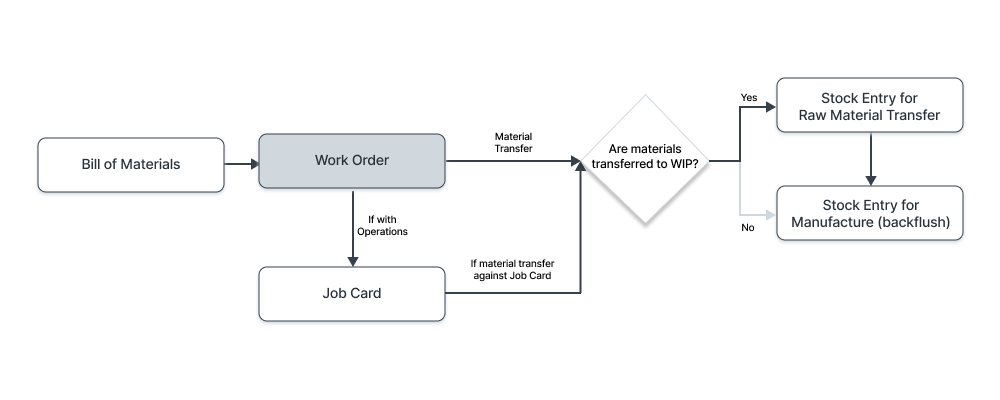
- Define raw materials and finished goods with UOM, barcode, Batch, and product image.
- Build a Bill of Materials (BOM) and link it to Operations and Workstations.
- Set up Production Plan and Work Orders based on sales requirements.
- Manage Job Cards and track time and cost at the operation level.
- Execute manufacturing-related stock movements: Transfer to WIP, Manufacture, Scrap.
- Handle wastage and scrap and control their effect on cost and stock.
- Use the most important manufacturing reports to monitor capacity and production cost.
2. Preparing Items for Manufacturing: Item, UOM, Barcode, Batch
Before starting production orders, items must be defined correctly. In ERPNext, every material is an Item which can be raw, semi-finished, or a finished product.
2.1 Accessing the Item screen
From the module tree, go to: Home > Stock > Items or use the Global Search by typing Item.

2.2 Key item fields for manufacturing
- Item Code / Item Name: The code and name of the item as it will appear on all documents.
- Item Group: The item group (Raw Materials, Packing Materials, Finished Goods...).
- Default Unit of Measure (UOM): The default UOM (KG, PCS, LTR...).
- Maintain Stock: Enable this for items that are tracked in stock.
- Include Item in Manufacturing: To specify that the item is used in manufacturing or produced by it.
2.3 Defining UOMs and conversions
In real-life manufacturing, materials may be received in one unit and consumed in another (for example: Carton → Bag → KG). In ERPNext, you can define multiple UOMs with conversion factors between them.
- Go to Home > Stock > Setup > UOM.
- Define UOMs such as KG, Bag, Carton.
- Inside the Item, open the UOMs table and set conversion factors (for example: 1 Carton = 10 KG).
2.4 Barcode and Batch / Serial
- In the Barcode section you can enter one or more barcodes for the item (for use with scanners).
- In the Inventory section, enable:
- Has Batch No: if the item is managed by batches (e.g., powders, mixes, food products).
- Has Serial No: if the item is managed by serial numbers (e.g., electronic devices).
- You can link Batch Date and Expiry Date if the item has a shelf life.
2.5 Adding a product image
On the same Item screen, use the Image field to attach an image from your device or from existing system files. The image will later appear in reports and Job Cards to help the production team visually identify the materials.
3. Defining Workstations, Operations, and the Manufacturing Route
Before building an accurate BOM, you should define the Operations your product passes through and the Workstations where those operations are performed.
3.1 Defining a Workstation
Path: Home > Manufacturing > Bill of Materials > Workstation
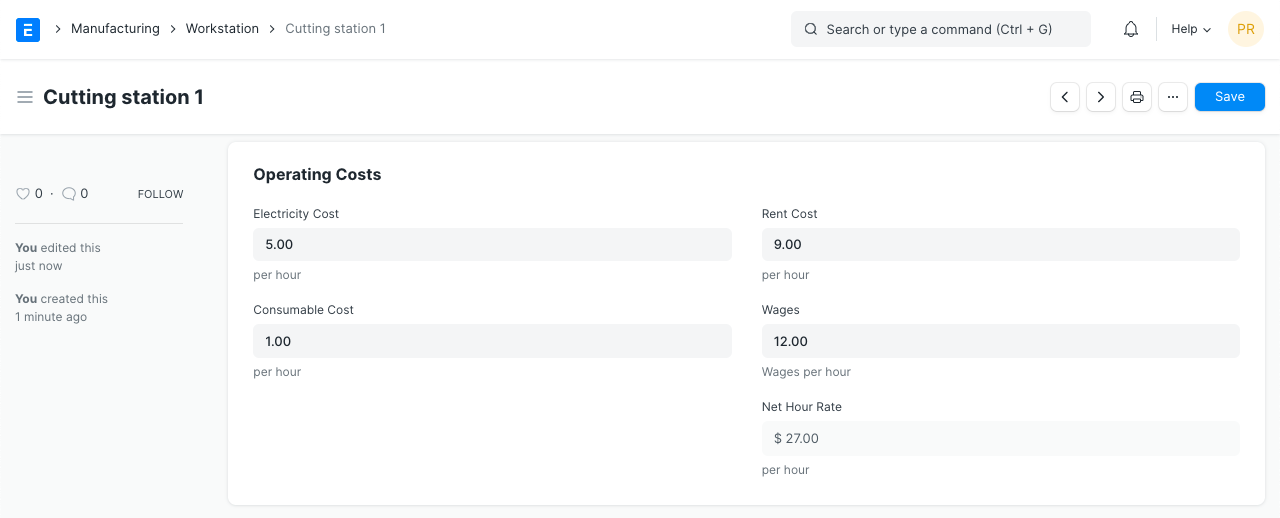
- Workstation Name: Name of the production line or machine (e.g., Mixer-1, Oven-2).
- Operating Costs: Estimated costs (electricity, rent, labor, auxiliary materials...).
- Holiday List: To exclude holidays when calculating production capacity.
3.2 Defining Operations
An Operation is a work step such as “Mixing”, “Filling”, “Baking”, “Welding”... where run time is recorded. Path: Home > Manufacturing > Bill of Materials > Operation
- Specify the operation name (e.g., Mixing, Filling, Packing).
- Define the time per unit (Operation Time) if possible.
- Link the operation to one or more Workstations later in the BOM or Routing.
3.3 Routing (optional but useful)
A Routing defines the sequence of operations a product goes through. One routing can be defined for each type of product.
- Go to Home > Manufacturing > Bill of Materials > Routing.
- Create a new Routing and add operations in order with a Workstation for each operation.
- Use this Routing in the BOM instead of entering operations directly in the BOM.
4. Defining the Bill of Materials (BOM) for the Product
The Bill of Materials (BOM) is the heart of the Manufacturing module; it specifies the raw materials and operations required to produce a specific quantity of the finished product.
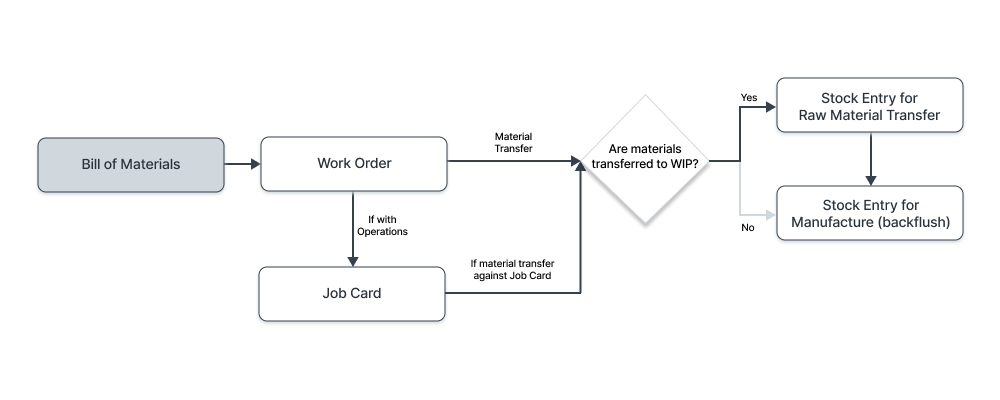
4.1 Creating a new BOM
- Go to Home > Manufacturing > Bill of Materials > Bill of Materials.
- Click New and choose the finished Item to produce (e.g., Chocolate Cake 1kg).
- Set the Quantity (standard production quantity, e.g., 1 KG or 100 PCS).
- In the Items table, add raw materials and the required quantity per production unit.
- If you are using a Routing, select it in the Routing field or add operations manually in the Operations table.
4.2 Important fields inside the BOM
- Is Active: Activate or deactivate this BOM.
- Is Default: Make this the default BOM for this item in Work Orders.
- With Operations: Enable linking the BOM with Operations and Job Cards.
- Scrap Items: To define items considered scrap and their scrap percentage.
4.3 Costing from the BOM
When the BOM is saved and submitted, the system calculates the expected manufacturing cost based on:
- Raw material cost (from stock valuation).
- Operation costs linked to the Workstations.
- Any scrap percentage defined.
5. Planning Production Using Production Plan
A Production Plan collects production requirements from multiple sources (Sales Orders, Material Requests, manual estimates) and turns them into Work Orders.
5.1 Creating a new Production Plan
- Go to Home > Manufacturing > Production > Production Plan.
- Create a new plan and choose the source:
- Get Items From = Sales Order to pull items from Sales Orders.
- Or Get Items From = Material Request if there are manufacturing requests from other departments.
- Adjust the quantities and Required By Date for each item.
5.2 Generating Material Requests and Work Orders
From inside the Production Plan you can:
- Use Get Material Requirements to calculate raw material requirements based on BOMs.
- Use Create Material Requests to raise Purchase or Stock Material Requests.
- Use Create Work Orders to create Work Orders for finished goods.
6. Work Orders in ERPNext
A Work Order is a document issued by the planning department to the shop floor specifying the item to be manufactured, quantity, production location, and required materials and operations.
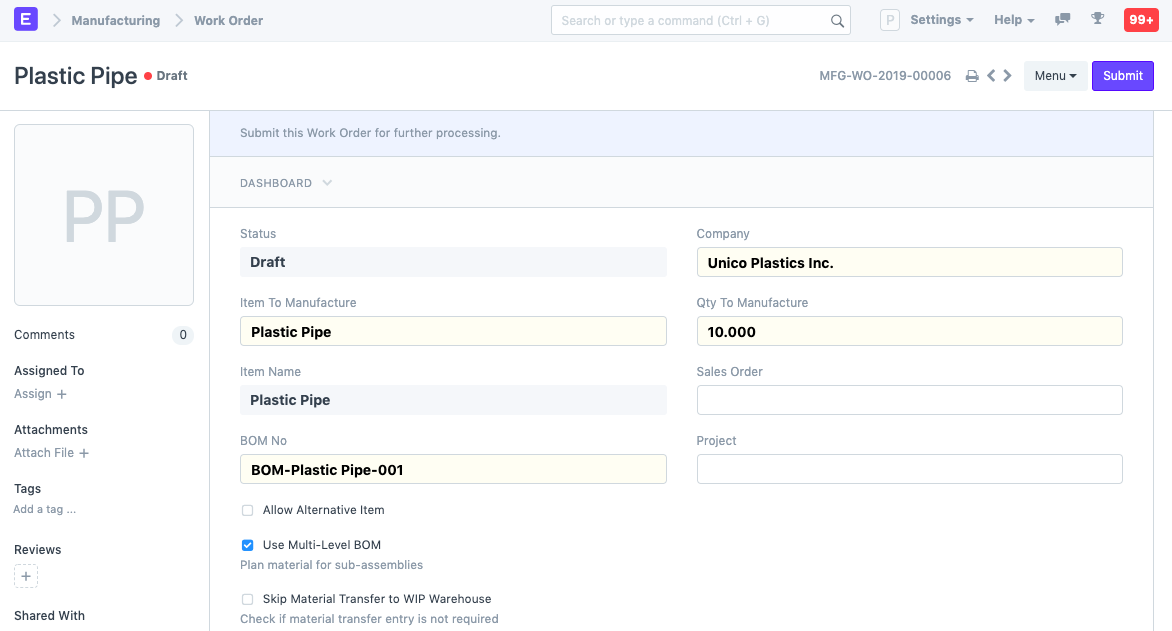
6.1 Creating a Work Order
- Go to Home > Manufacturing > Production > Work Order.
- Click New then:
- Select the Item to Manufacture.
- Ensure the correct Default BOM is fetched.
- Enter the Quantity to Manufacture.
- Specify Source Warehouse (raw materials), WIP Warehouse, and Target Warehouse (finished goods).
- Save the Work Order then Submit it to start the production cycle.
6.2 Material transfer options
- Transfer Material Against = Work Order: Move materials in bulk from the raw materials warehouse to WIP.
- Transfer Material Against = Job Card: Move materials per operation/Job Card.
7. Job Cards: Tracking Operations on the Shop Floor
A Job Card stores the actual information for each operation on a specific Workstation: run time, operators, produced quantities, and rejected quantities.
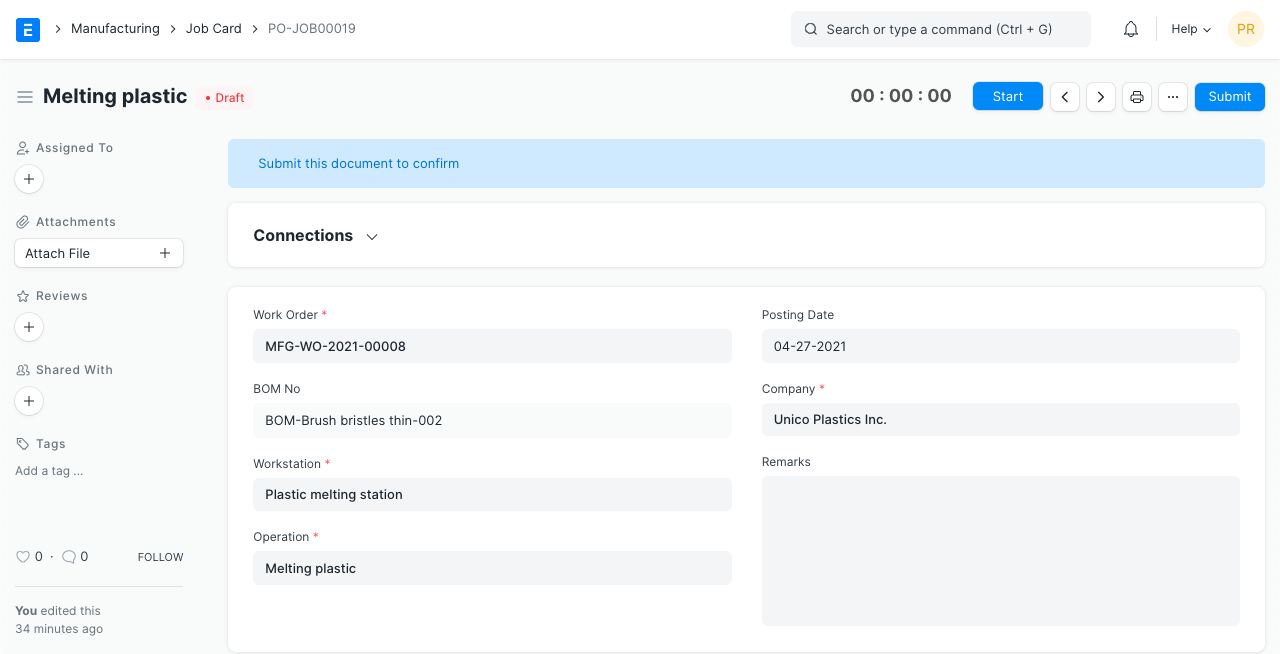
7.1 Creating Job Cards from a Work Order
When a Work Order with operations (from BOM or Routing) is submitted, the system can automatically create Job Cards for each operation.
- Open a submitted Work Order.
- From the actions menu choose Create > Job Cards (if they were not generated automatically).
- The system generates a Job Card for each Operation with the relevant Workstation and planned quantity.
7.2 Using Job Cards on the shop floor
- The operator opens the Job Card and clicks Start Job at the beginning of the operation.
- After finishing, they click Complete Job and enter:
- Produced quantity.
- Any rejected or scrap quantity.
- Actual run time (if not captured automatically).
- The Work Order progress is updated automatically by operation completion.
- Select a Work Order for a finished product (e.g., Cake Mix 1000 KG).
- Open the Job Card for the Mixing operation on the appropriate Workstation.
- Start the job and then complete it after entering the produced quantity and run time.
- Review the Work Order and verify that the completion percentage has been updated.
8. Stock Movements in the Manufacturing Cycle (Stock Entry)
During manufacturing, the Stock Entry document is used to move raw materials, post finished goods, and handle scrap.
8.1 Main Stock Entry purposes for manufacturing
- Material Transfer: Move materials from the raw materials warehouse to the WIP warehouse or between warehouses.
- Manufacture: Consume raw materials and add the finished product (with Batch) against a Work Order.
- Material Transfer for Manufacture: Transfer materials to prepare for production and then post a Manufacture Stock Entry later.
- Material Receipt / Issue: Receive or issue materials outside the Work Order context (should be used carefully).
- Repack: Change the packing form without changing the nature of the item (for example: Bag to Carton).
8.2 Creating a Manufacture Stock Entry from a Work Order
- Open a Work Order in In Progress status.
- From the Create button choose Stock Entry.
- Set Purpose = Manufacture.
- The system will pull:
- Raw materials in the Items table with the required quantities.
- The finished product in the last row with the Target Warehouse.
- If the item uses Batch, select or create a new Batch for the finished product.
- Save and submit the Stock Entry to affect stock and manufacturing cost.
8.3 Moving materials to the WIP warehouse
In factories that use a dedicated WIP warehouse, you typically first:
- Create a Stock Entry with Purpose = Material Transfer from the raw materials warehouse to WIP.
- Then create a Stock Entry with Purpose = Manufacture to consume from WIP and add the finished goods.
9. Handling Scrap, Wastage, and Quality
There is no production without scrap. What matters is recording scrap correctly so that materials do not disappear from stock without an accounting impact.
9.1 Defining Scrap in the BOM
- In the Scrap Items table inside the BOM, you can specify:
- The item that represents scrap (e.g., metal offcuts, leftover filling).
- The expected scrap percentage from the production quantity.
- You can link a separate Scrap Warehouse to collect scrap there.
9.2 Recording actual scrap in Job Cards or Stock Entries
While completing a Job Card, you can enter a Rejected Quantity or Scrap Quantity. You can also adjust quantities in a Manufacture Stock Entry to show the difference between planned and actual usage.
9.3 Handling damage or non-production scrap
- Use Stock Entry > Purpose = Material Issue to issue damaged materials out of stock.
- Or use Stock Reconciliation to adjust stock after a physical count.
- These movements should be reviewed by accounting as they affect Cost of Goods Sold (COGS).
10. Key Reports and Training Session Plan
10.1 Main manufacturing reports
- Open Work Orders: Monitor open Work Orders and their statuses.
- Production Analytics: Analyze production quantities by item or period.
- BOM Explosion: Display all materials going into a product across multi-level BOMs.
- Capacity Utilization: Monitor utilization of Workstations and run times.
- Job Card Summary: Track time and cost at the operation level.
10.2 Suggested training session plan for the Manufacturing module
The practical training can be split into four main sessions:
- Session 1: Defining Items, UOMs, Item Groups, Batch / Barcode.
- Session 2: Workstations, Operations, BOM, Routing, and product costing.
- Session 3: Production Plan, Work Orders, Job Cards, and Stock Entries.
- Session 4: Scrap and wastage, quality control, reports and analysis, and linking manufacturing with accounts.
Every step in the manufacturing module – from defining the item to running reports – is tied to other modules. The better you understand the relationship between BOM, Work Order, and Stock Entry, the more ERPNext becomes a real tool to manage your factory, not just a system for entering quantities.